

Print On Demand
This add-in installs three new Outlook toolbar buttons that allow you to 1) print the email and 2) print the attachment(s) or 3) print both.
Do you need to print attachments? Printing just became simpler with our Print on Demand Outlook software add-in. Easily print just your selected emails, just the attachments, or print both the emails and their attachments, without having to open the emails or their attachments. Best of all, it prints them in order – no more having to fumble around trying to figure out which papers go with which emails.
Print On Demand has always had a “Print Email” and a “Print Attachments” toolbar button in your main Outlook window. But now in the newest release, there’s also a “Print Both” button added to allow you to select multiple emails and then print both emails and their attachments, in order.
“Thank you so much for having the ONLY program we can use to print multiple emails at once.”
– Hiedi Pfeil, CO, United States
Highlights
- Prints multiple selected items with just one click
- Installs three new buttons in your main Outlook toolbar:
- Print just the email without the attachment
- Print just the attachment without the email
- Print both the selected emails and their attachments, in order
- Simply select your emails and click one of the buttons
- 2 years of chat, email, and phone support
- 2 years of free upgrades
Features
- Installs three new buttons in your main Microsoft® Outlook® toolbar:
- Print just the email without the attachment
- Print just the attachment(s) without the email
- Print both the selected emails and their attachments, in order
- All printed emails optionally include the attachment information
- New! Word docs now automatically suppress the track changes prompt, so there's no interruption while printing
- New! PDF docs now are handled by our internal routines instead of requiring that Adobe Reader or Adobe Acrobat be installed
- Integrates directly into Outlook
- Works with Office 365, Outlook 2021, 2019, 2016 (both 64-bit and 32-bit)
- Also works with, but does not require, Microsoft® Exchange public folders
*Click on the images to enlarge.
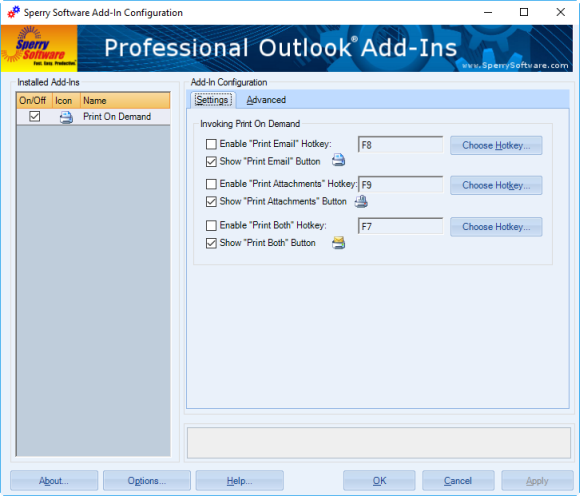
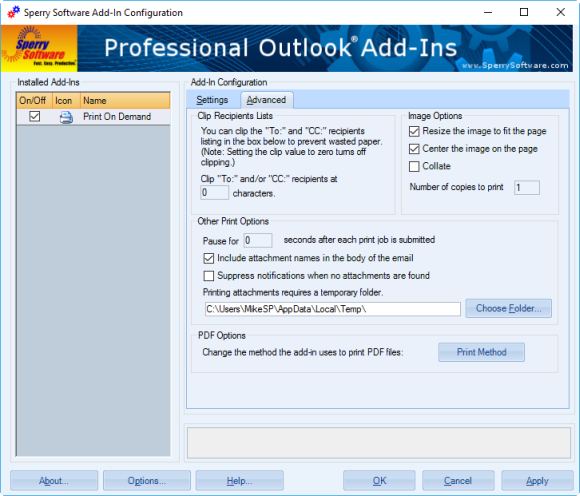
Add the ability to print just your emails, or just your attachments (or both). The three buttons appear in Outlook once you download and install the add-in.
14-Day Trial Downloads
- Our trial versions are fully functional and are the production version.
- The version you choose below is dependent on whether you have 32-bit or 64-bit Outlook - see How to tell if you have 32-bit or 64-bit Outlook installed for help.
- If you need to uninstall for any reason, review our instructions for uninstalling our add-ins.
- View our End User License Agreement.
Version: 8.1.8918.27029
Last Updated On: 2024-06-01
For Windows 10, 11, Windows Server 2016 or higher;
And Office 365, Outlook 2021, Outlook 2019, and Outlook 2016
Print On Demand for Microsoft 365/Office 365/Outlook 2021/2019/2016 (32-bit)
Print On Demand for Microsoft 365/Office 365/Outlook 2021/2019/2016 (64-bit)
Version 8.0:
Version: 8.0.8831.22747
Last Updated On: 2024-04-20
For Windows 10, 11, Windows Server 2016 or higher;
And Office 365, Outlook 2021, Outlook 2019, and Outlook 2016
Print On Demand for Microsoft 365/Office 365/Outlook 2021/2019/2016 (32-bit)
Print On Demand for Microsoft 365/Office 365/Outlook 2021/2019/2016 (64-bit)
All downloadable add-ins:
View the list of all our downloads (in alphabetical order)
More Information
How does it work? There are two ways it works.
The first way is you highlight several emails (from your main Outlook window) then click on one of the three toolbar buttons (Print Email, Print Attachments, or Print Both). Once you click on one the buttons, printing starts. These buttons act just like your original print button (which is still there just in case you need it), except that they print multiple emails in order (which Outlook will sometimes not do).
The second way the add-in helps you work is when you open an individual email. It puts up three toolbar buttons in this case as well, and they do the same as when you are in your main Outlook window. It couldn't be simpler to quickly print emails and attachments.
Important: Are you trying to print to PDF?
If you plan on using this add-in in conjunction with a PDF printer driver with the ultimate end being to create a PDF file of your emails and attachments, then you might want to take a look at our new Save As PDF Outlook add-in. This add-in will save your emails and/or attachments directly to PDF format without the need for a PDF printer driver. While this add-in will do what you're looking for, it just might be simpler to use the Save As PDF add-in.
Note: Do you need to automatically print email and/or attachments as they arrive? If so, see our Auto Print Outlook Add-In.
More printing information: And just in case, here is an article on how to print emails and/or attachments in Outlook (both with and without the help of add-ins).
Read More from Our Blog:
Similar to our standard Auto Print add-in, this add-in will automatically print emails and/or attachments using rules. It will even print to different printers based on the subject, or who it’s from, etc. Completely versatile with an unlimited number of rules!
Converting emails to PDF files is a breeze with this add-in. It also converts many Microsoft Office file type attachments as well as image attachments and even zip files!
Finally, an add-in that automatically prints email when it arrives at your Inbox without you having to do anything. Save time by automating those repetitive chores.