| Our Best Selling Add-Ins |
|
|
| Shopping Cart |
|
|
|
|
|
 | Appointments By Email Add-In for Microsoft Outlook |
|
| For Outlook 2013 | 2010 | 2007 | 2003 | 2002 | 2000 |
SKU: A12451 |
|
Highlights:
- Accepts emails that have appointment times and adds them to the calendar
- Monitors any folder so that it integrates with any calendar
- Allows the computer to respond to the appointment email
|
|
Note: This add-in was retired in September 2014. Please see our store for other options.
|
| |
| Product Description |
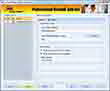 Schedule appointments using just plain text email! Automatically add appointments
to your calendar by sending an email with a date/time and a message describing the appointment. Coordinate home/office
calendars, add appointments from a Blackberry RIM, or send in appointments over the web.
Schedule appointments using just plain text email! Automatically add appointments
to your calendar by sending an email with a date/time and a message describing the appointment. Coordinate home/office
calendars, add appointments from a Blackberry RIM, or send in appointments over the web.
Features of the Appointments By Email add-in include:
- Accepts plain text emails with appointment information and adds it to your calendar
- Specify the appointment start/end time, subject, location, notes, and whether it is an all day event or not
- Easily enable/disable the add-in
- Monitors folders other than the Inbox
- Allows the computer to respond to the appointment email
- Responds to indicate if the appointment has been accepted or conflicts with another appointment
- Integrates directly into Microsoft® Outlook®
- Works with Microsoft Outlook 2013 and 2010 (both 64-bit and 32-bit versions), Outlook 2007, Outlook 2003, Outlook 2002 and Outlook 2000
Start accepting appointments automatically. Click "Add To Cart" to add it to your cart now.
|
Outlook Tip: How to send appointments over the Internet
You can send an appointment request over the Internet by using RTF format. You can check the format by going
to Tools...Options...Mail Format. The box labeled "Send using..." should read "Microsoft Outlook Rich Text".
Once it's set, you can then invite people across the Internet (who use Outlook) to your meetings.
| Release Notes | | 4.1 | Added support for Windows 8. | | 4.0 | Added support for Windows 7, Outlook 2010 64-bit and Outlook 2010 32-bit. | | 3.0.35 | Upgraded to work with the newest version of the Microsoft® runtimes (Visual Studio® Service Pack 6). | | 3.0.31 | Improved the help engine. | | 3.0.23 | Allowed customization of the outgoing signature so you can tell which computer sent the reply | | 3.0.2 | Improved help system including HotHelp, which are instructions that appear when you need them most | | 3.0.1 | Created a new Outlook toolbar for easier add-in configuration | | 3.0.0 | Upgraded to work with multiple Outlook profiles on the same machine | | 1.2.0 | Added Location and Note (body) details into email that's accepted | | 1.1.15 | "Corrected error that produced the message ""The operation failed due to network or other communication problems. Check your connections and try again.""" | | 1.1.13 | Corrected bug that caused crash if Outlook was automated | | 1.1.12 | No longer causes Outlook security prompts | | 1.1.11 | Added support for All Day Events | | 1.1.6 | "Corrected ""Type Mismatch"" errors" |
| International Customers |
| |
| Currency: |
Language:
|
|
|
Home, Corporate Sales, Federal/State Sales, Our Guarantee,
Upgrade Policy, Privacy Policy, Sitemap, About Us, Blog, KnowledgeBase
|
|
Questions or problems regarding this web site should be directed to [email protected]
Copyright © 2001-2015 Sperry Software, Inc. All rights reserved.
|
|
Microsoft Outlook ® and Microsoft Outlook Express ® are a registered trademarks of Microsoft Corp.
|
|
|
|
| |  |
Chat with our Sales Team! |
|
|
|
|
|
|
|
|