

How To Add Contacts
You don’t always need an add-in to add contacts from email messages, Outlook can do this natively. To find out how to add contacts in Outlook, follow these instructions:
How to add contacts to the address book (for Outlook 2016, 2013 and Outlook 2010):
- Open an email from someone
- Right click on the From email address
- Click add to contacts
- Add any additional (optional) information and click Save
- Click save and close
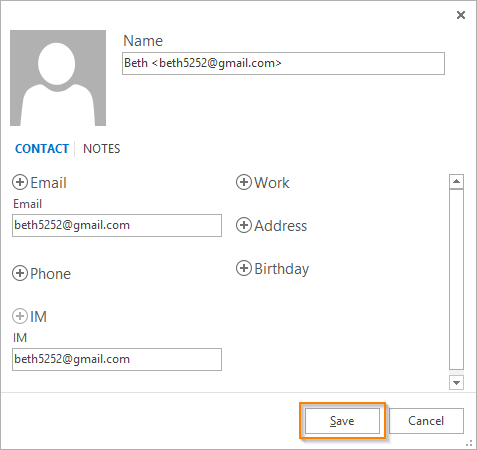
The contact will always be added to your default contacts folder.
If you have received a vcard in email, you can add that person’s contact details:
How to add contacts from an email with a vcard attachment:
- Open the email
- Double click on the attachment; an Outlook contact window opens
- Add any additional information
- Click save and close
Again, the contact will be saved to your default contacts folder. For more information about working with vcards, see our how to convert vcards guide.
These methods are fairly simple for adding one contact at a time. If you need to quickly add many new contacts though, the Add Outlook Email Address add-in is a great solution since there’s no way to do that in Outlook. You can configure it to add contacts from different areas of Outlook, such as only custom folders you have created in Outlook, or to automatically add contacts only when you send email messages. New contacts can even be assigned categories when they are created.
How to add many contacts from Outlook email messages with the Add Email Address add-in:
- In the main Outlook window, select all the emails you’re interested in (Note: Select several by holding down the Ctrl key as you click, or select them all by clicking Ctrl-A)
- Click the “Add Email Address” button in the main Outlook toolbar
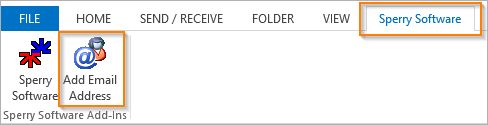
- Choose where to add the contacts
As you can see, not only does the add-in have the advantage of creating many contacts all at once, but you can also add them to any contacts folder, not just the default.
Outlook used to have the ability to put people you reply to in contacts. This feature was taken out in Outlook 2002 and beyond. However with the add-in you can still do this:
How to automatically put people you reply to in contacts
- In Outlook, click the Sperry Software toolbar button
- Check the box that says “Enable when replying” (for replies)
- Then check the box that says “Enable when sending” (for new threads)
- Click Apply
That’s it! You can now start replying to your emails knowing that the people you are replying to are being added as contacts.
Need more information?
Download a free trial version of our Add Email Address add-in.
Discuss this topic in depth on Sperry Software’s LinkedIn page.
Microsoft Office is a great resource for learning more about how to create contacts in Outlook.
View a list of useful Outlook how to articles
Feel free to also chat with us by clicking on the “Live Chat” icon.