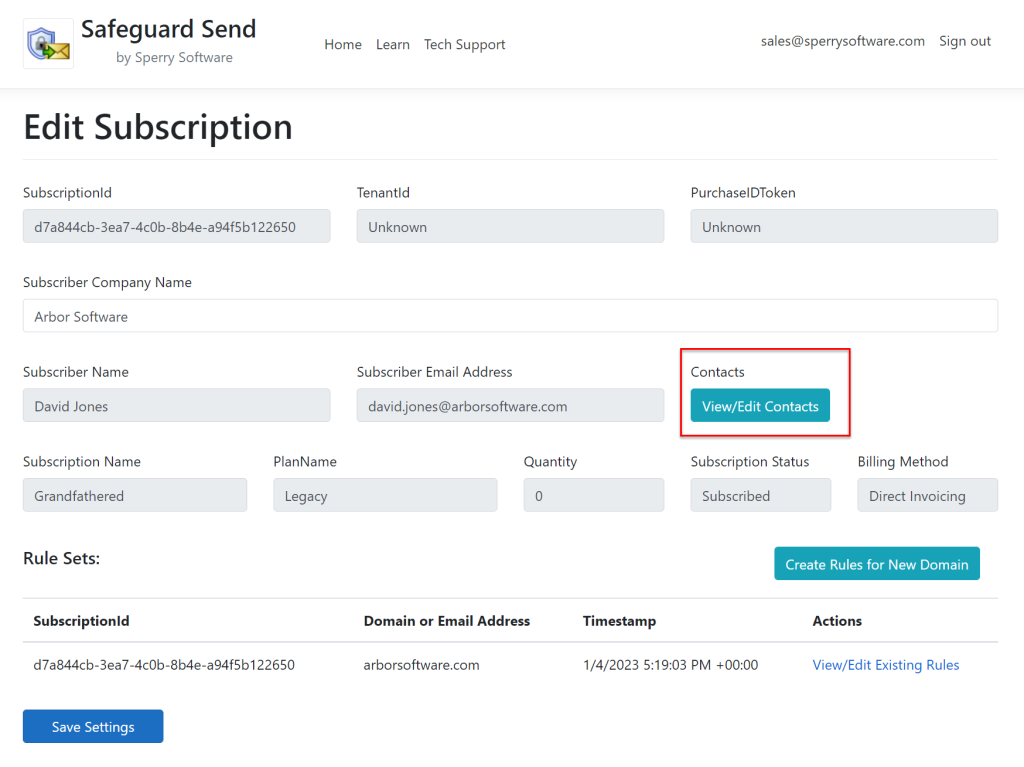
From the Subscription home page, you can view/edit existing contacts by clicking on the View/Edit Contacts button:
Here is where you access your list of contacts.
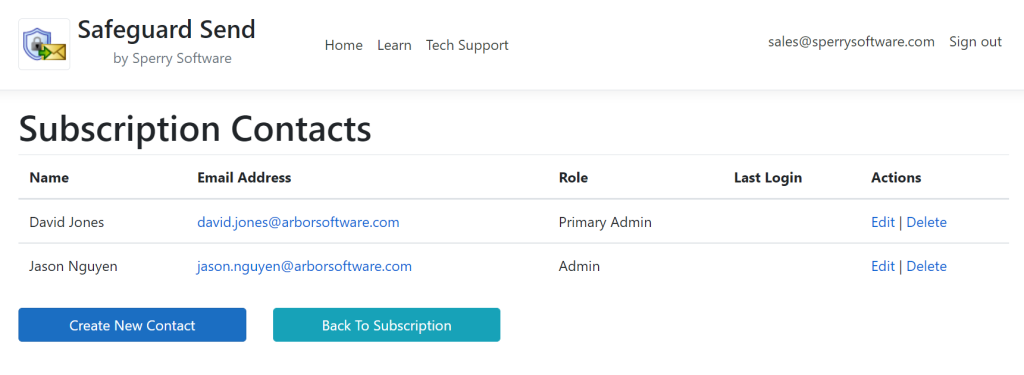
From there, you are brought to the list of contacts that are registered to use your dashboard:
Here are the two contacts from Arbor Software. Both David and Jason can access the dashboard and add/edit/delete rules.
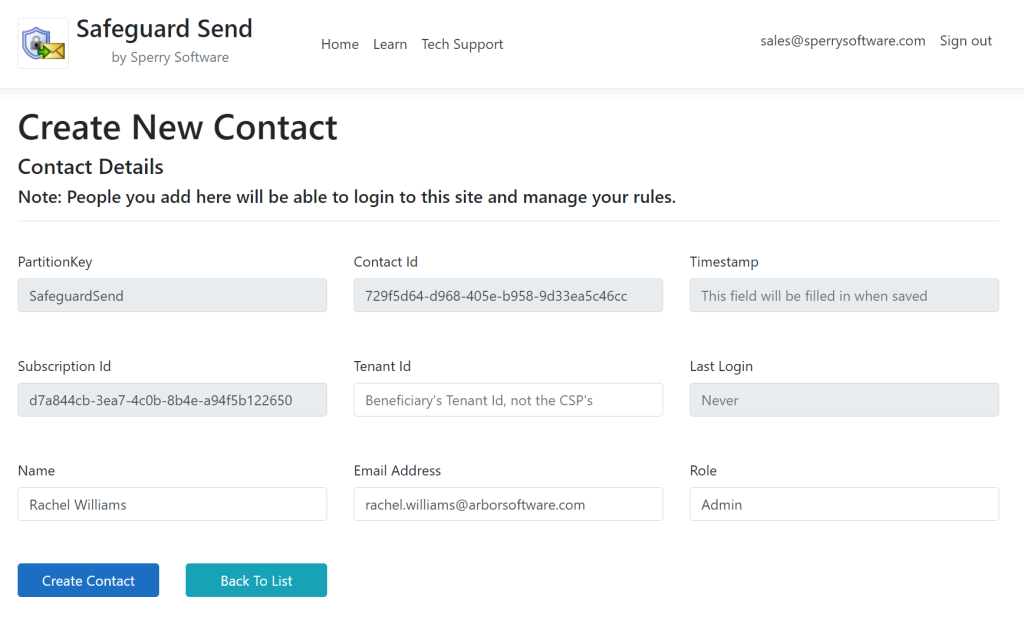
In general, when you go to add or edit a contact, it looks like this:
Here we can see that Rachel Williams is about to be added as an Admin.
You must provide the full name, the person’s email address (which must be a Microsoft 365 account), and the role that the person plays. For now, the only role that can be selected is Admin, and the person who initially signed up for the subscription has the role of Primary Admin.
Today, there is no difference between these two roles but in the future we envision allowing the Primary Admin to be the only one who can add/edit/delete contacts, and be the only one who can change the status of the subscription (either changing the quantity or unsubscribing altogether).
Further, in the future, we plan on adding other roles, for example a CSP role and/or a Billing role (mostly for read-only access).