

Microsoft ships two different applications on Windows both called Outlook: the traditional classic desktop Outlook that has been part of Microsoft 365 and Office for years, and the newer new Outlook for Windows. They look similar, but under the hood they are separate programs — and knowing which one you have matters when you install or troubleshoot Outlook add-ins from Sperry Software.
This page shows four quick ways to tell them apart, from the fastest at-a-glance check to the definitive version number.
The fastest check: the toggle in the top-right corner
Open Outlook and look at the top-right of the main window, just to the left of the Copilot button or the minimize/close controls. You will see a small toggle labeled Try the new Outlook or New Outlook.
- Toggle is Off — you are using classic desktop Outlook.
- Toggle is On — you are using new Outlook.
- No toggle at all — you are almost certainly using new Outlook (some builds hide the toggle once you have fully switched over).
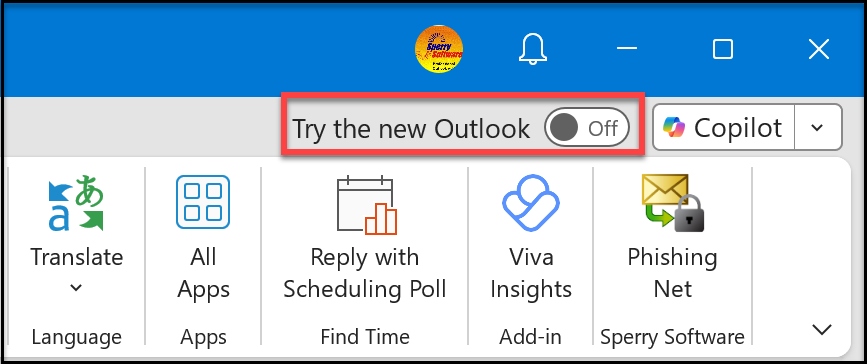
Toggle Off — classic desktop Outlook.
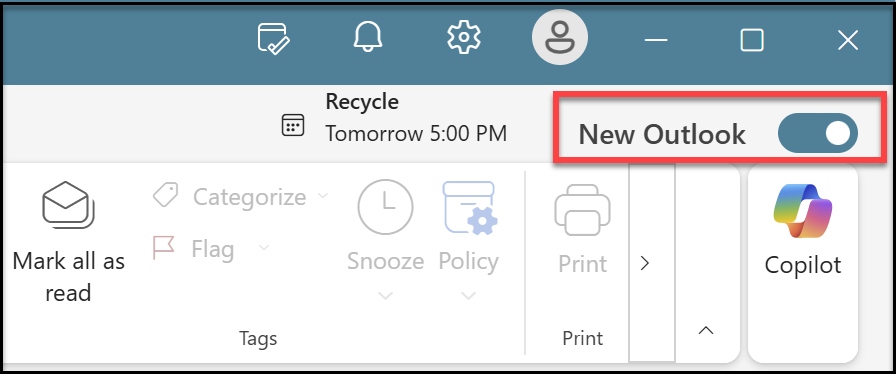
Toggle On — new Outlook.
Second check: File → Office Account
Only classic desktop Outlook has the traditional File menu with an Office Account pane. If you can click File in the top-left and see a screen like the one below — with User Information, Product Information, Update Options, About Outlook, and Office Background — you are on classic desktop Outlook.
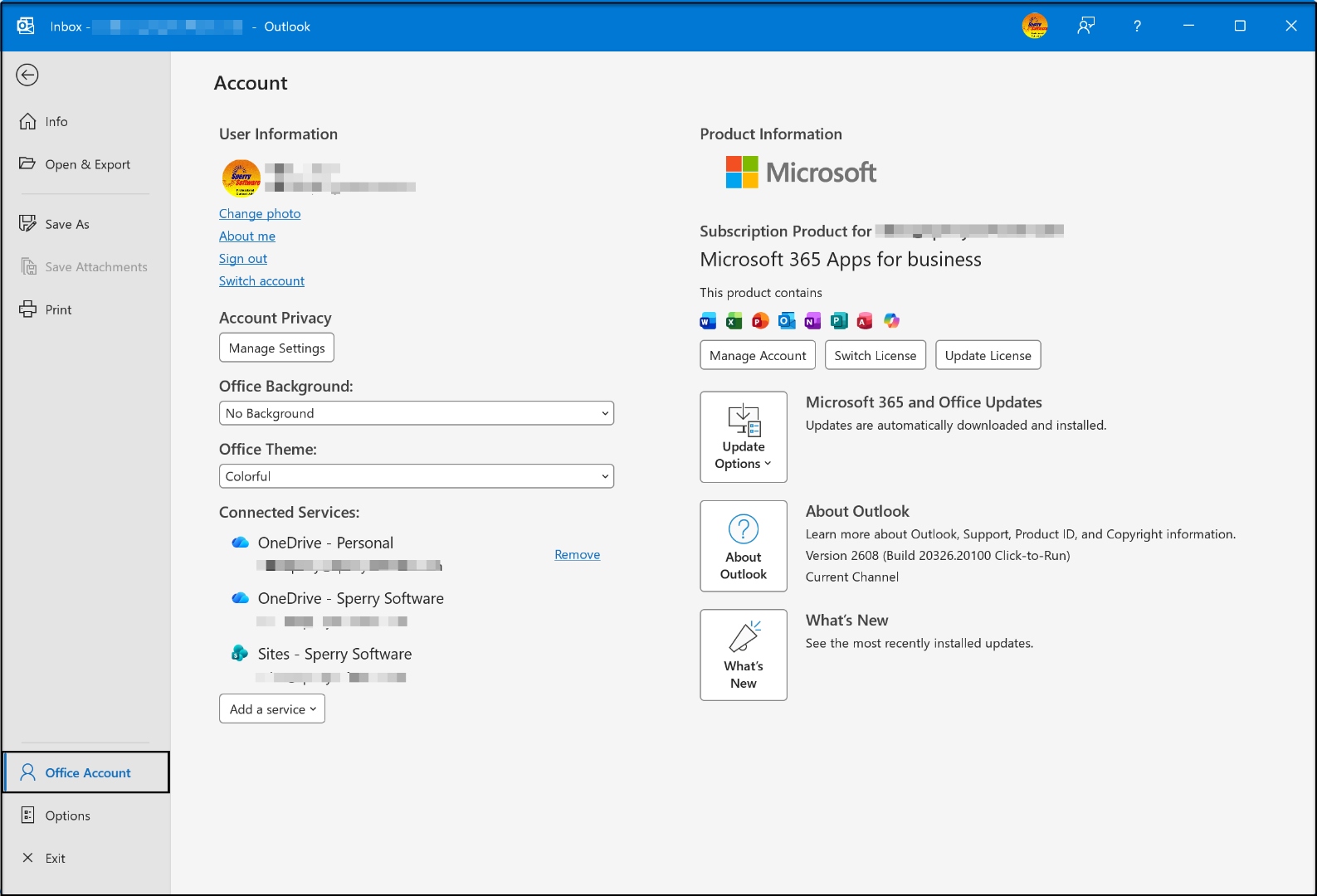
Classic desktop Outlook: File → Office Account.
New Outlook does not have this pane at all. Instead of a full File menu, it offers a compact Settings gear icon in the top ribbon.
Definitive proof: the version number
Classic desktop Outlook
From the Office Account pane above, click About Outlook. A dialog opens with the exact version at the top:
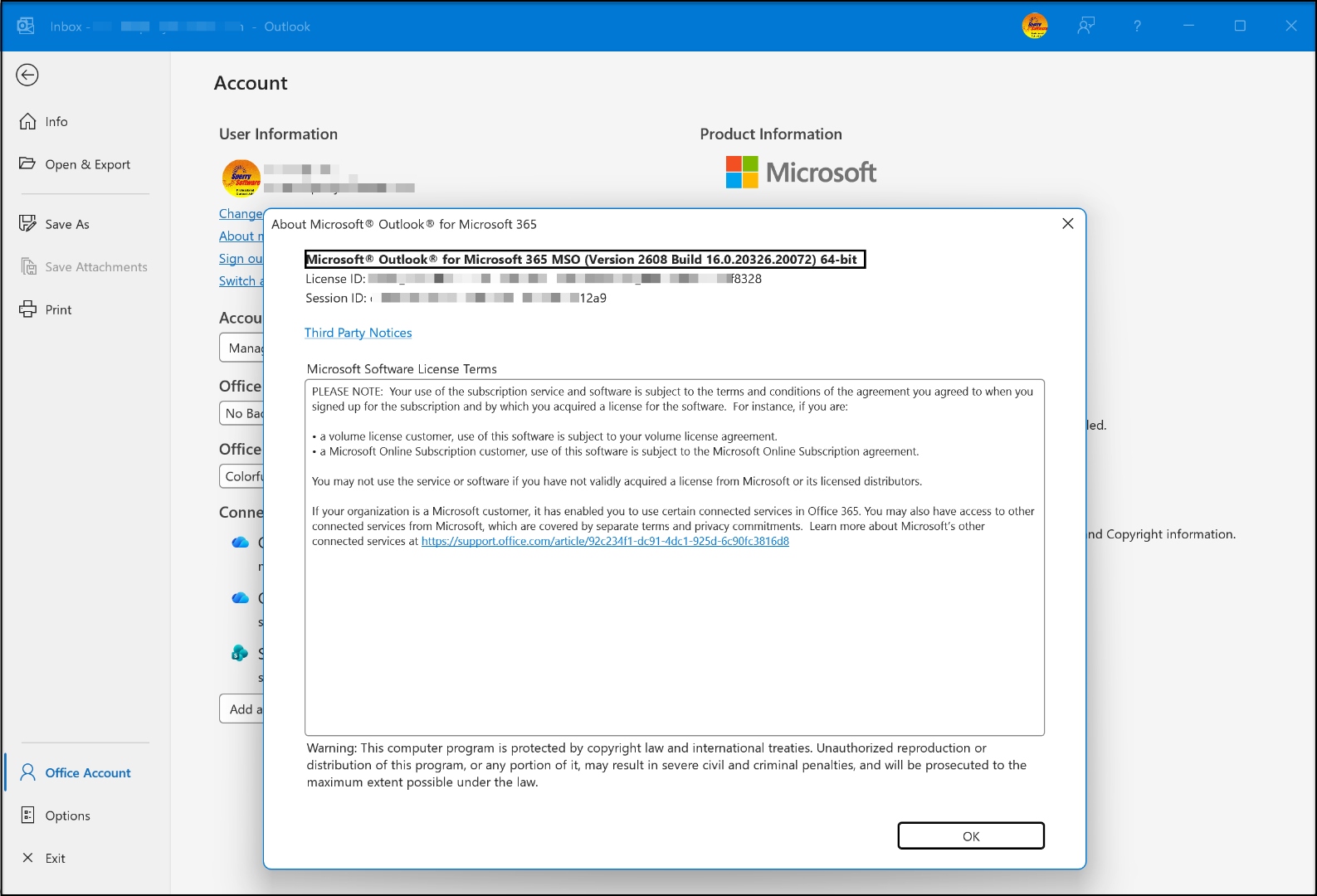
Classic desktop Outlook: the About dialog shows a version starting with 16.0.
Classic desktop Outlook always reports a build number that starts with 16.0. This covers Outlook for Microsoft 365, Outlook 2024, Outlook 2021, Outlook 2019, and Outlook 2016 — they all share the 16.0 build family. The dialog also tells you whether you are running the 32-bit or 64-bit edition, which is important when downloading Sperry Software add-ins.
New Outlook
In new Outlook, click the Settings gear icon in the top ribbon, then choose General → About Outlook:
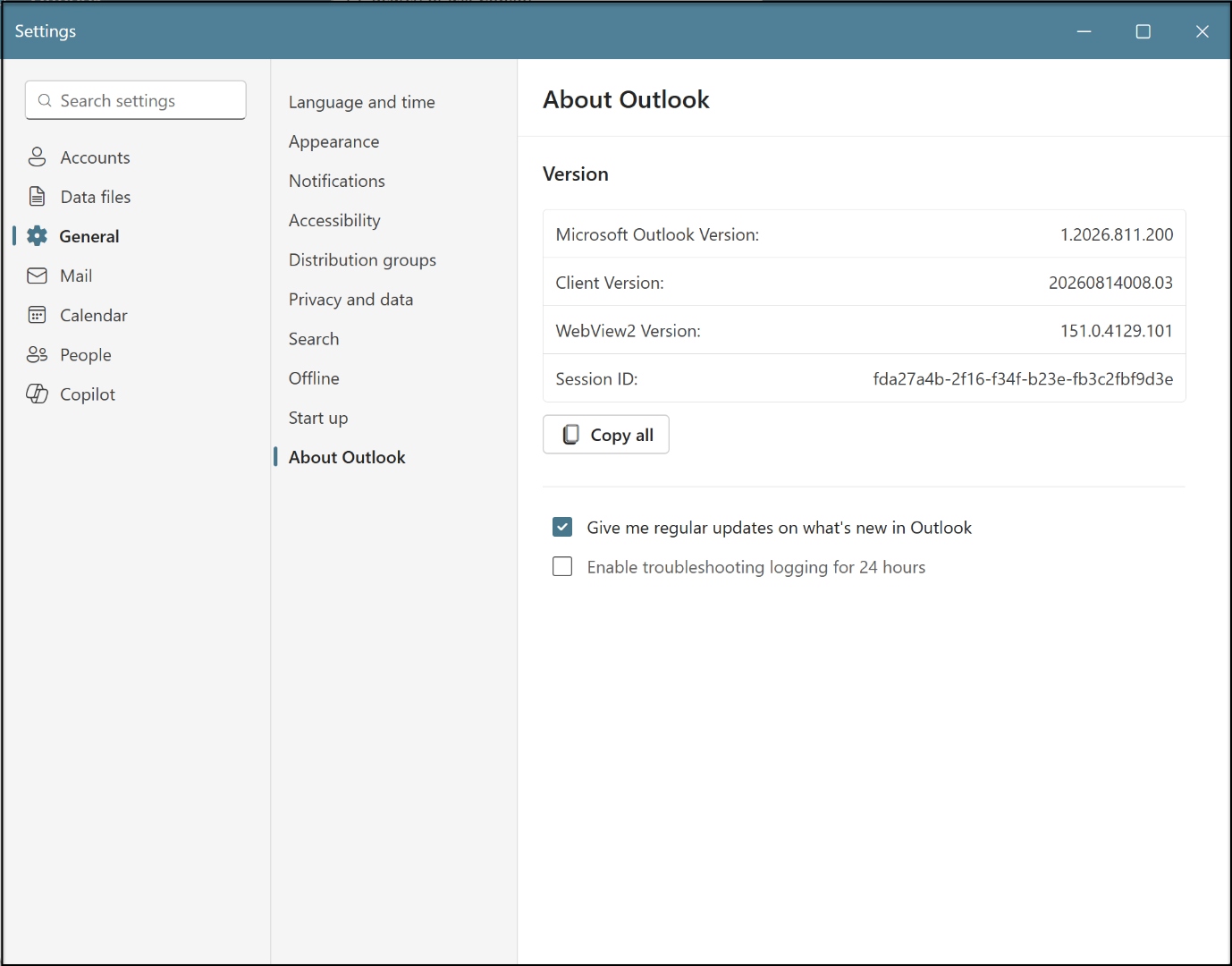
New Outlook: the About Outlook pane shows a version starting with 1.20xx.
New Outlook reports a Microsoft Outlook Version that starts with 1. followed by the year (for example, 1.2026.811.200). If your version begins with 1. you are on new Outlook, not classic.
Why this matters for your Sperry Software add-ins
Sperry Software offers two families of add-ins, and they are compatible with different Outlook versions:
- Legacy COM add-ins — Auto Print, Auto Print Pro, Save As PDF, Send Individually, and 25+ others. These require classic desktop Outlook. They will not load or function inside new Outlook.
- Modern Microsoft 365 add-ins — Safeguard Send for Microsoft 365 and Send Individually for Microsoft 365. These are built on the modern Office JavaScript API and run in classic desktop Outlook, new Outlook, Outlook on the web, and Outlook for Mac.
If you are on new Outlook and a legacy COM add-in appears to be missing, that is expected — the add-in itself is fine, but new Outlook cannot load COM add-ins. Toggle New Outlook to Off to return to classic desktop Outlook and the add-in will be there.
Switching between the two
The toggle at the top-right of Outlook is a two-way switch. Turn it on to try new Outlook; turn it off to go back to classic. In most environments the switch is instant and does not affect your email accounts, mailboxes, or add-in installations — each Outlook simply reads the same account data.
If the toggle is missing or disabled, your IT administrator or Microsoft 365 tenant policy may have locked the choice. Microsoft’s official Getting started with the new Outlook for Windows article covers those edge cases.
Need help with a Sperry Software add-in after identifying your Outlook edition? Visit Sperry Software support and include the product name, Outlook version, and how the add-in was installed.
