This guide is for IT managers and administrators, because Safeguard Send Core requires that it be installed through Microsoft Admin Center. As a result, it cannot be installed directly into Outlook by end users.
Before deploying the add-in, it’s best to plan your deployment first – particularly if you are migrating from the desktop version of Safeguard Send. Our Deployment Best Practices Guide can help you plan your deployment whether you are migrating from a previous installation or installing to a brand new environment.
As an IT manager or admin, deploying an Outlook add-in can be a complex process, but it doesn’t have to be. In this article, we will examine the typical method to deploy an Outlook add-in using the Microsoft 365 Admin Center Integrated Apps feature, based on Safeguard Send Core.
In general, the only requirement to installing is making sure you have the manifest XML file (or the URL to it). You received the URL to the manifest when you purchased Safeguard Send Core.
Deploy Add-ins Using Microsoft 365 Admin Center Integrated Apps Feature
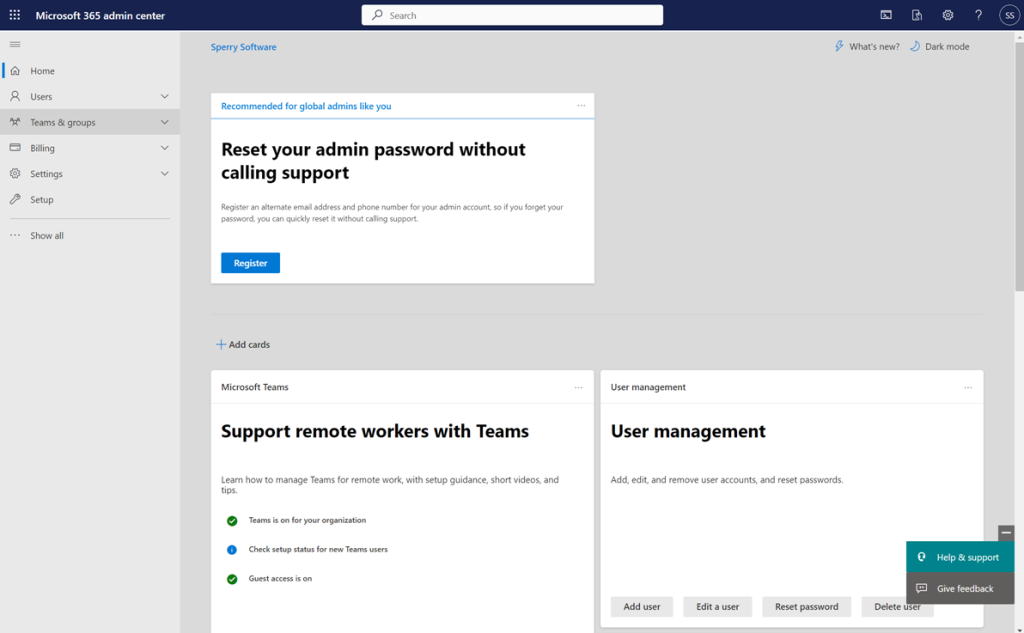
Step 1: Sign in to the Microsoft 365 Admin Center. Navigate to the Microsoft 365 admin center at https://admin.microsoft.com, and sign in with your admin credentials
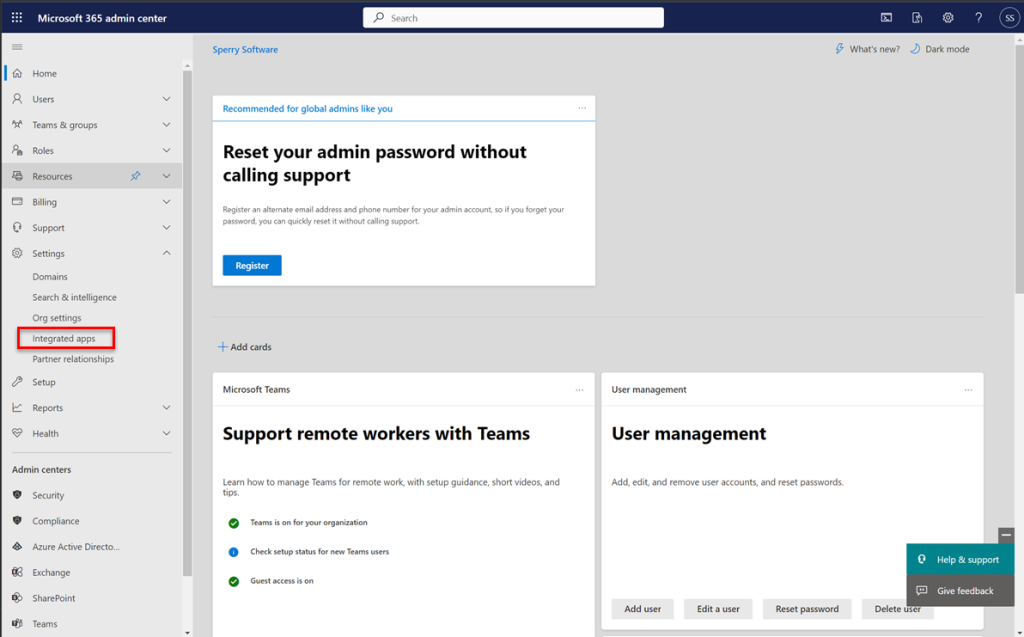
Step 2: Navigate to the Add-ins page. In the left pane, select Settings > Integrated apps. If you don’t see the Settings option in the left hand pane, instead select Show All. This will reveal all the available options, including Settings
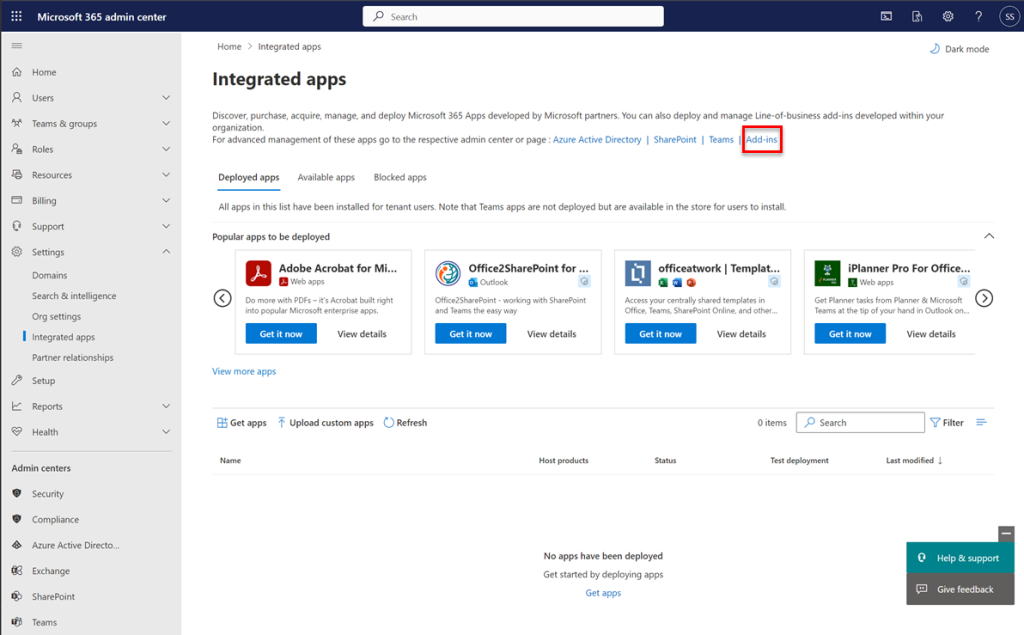
Step 3: Click on Add-ins (the link at the top):
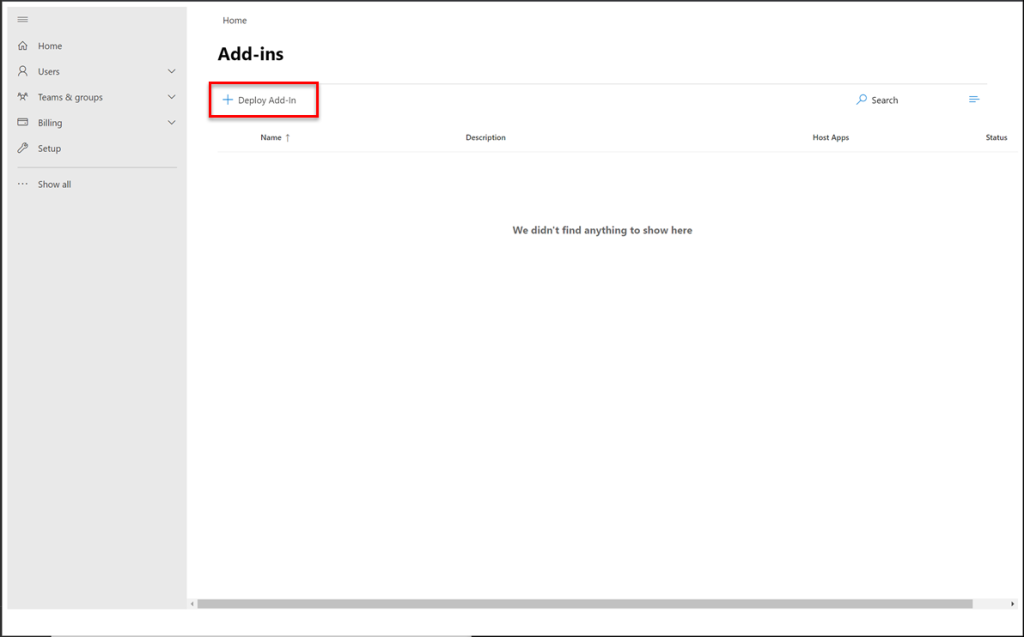
Step 4: Click the Deploy Add-In link, then click Next:
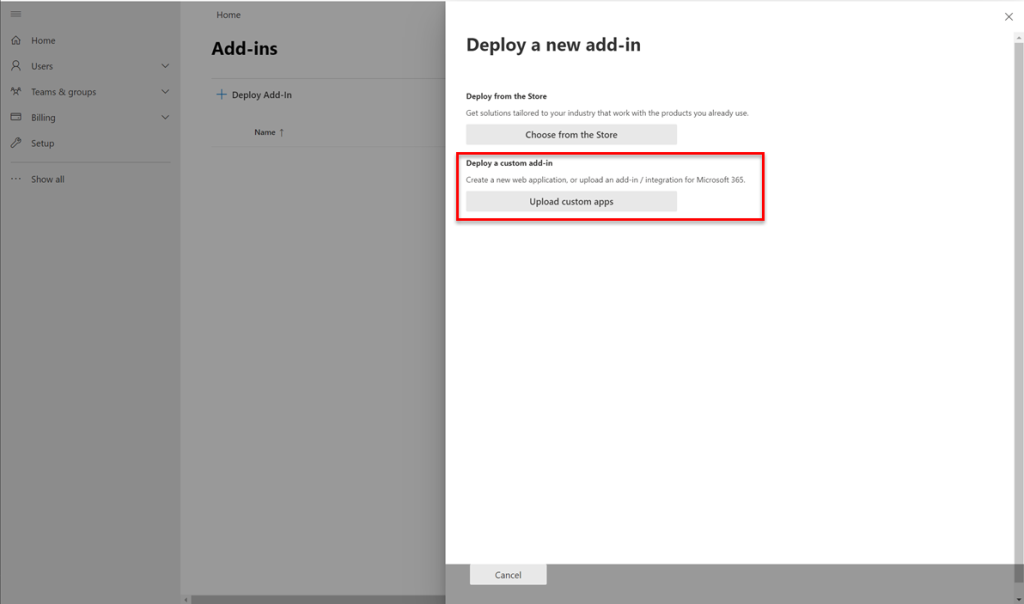
Step 5: Under the Deploy a custom add-in option, choose Upload custom apps:
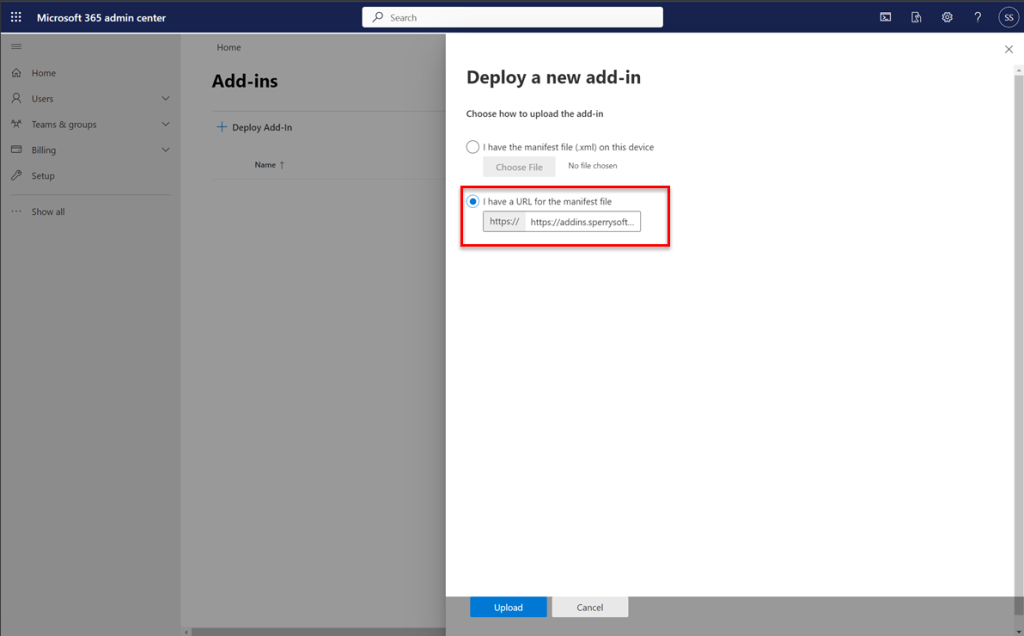
Then select the option “I have a URL for the manifest file” and paste in the URL. You can also choose to download the zip file, unzip the manifest.xml file and select that option if you prefer.
Note: Be sure to include the https:// in the URL field. At the time of this writing, even though the https:// is implied that it will be accepted, it will not and an error will occur.
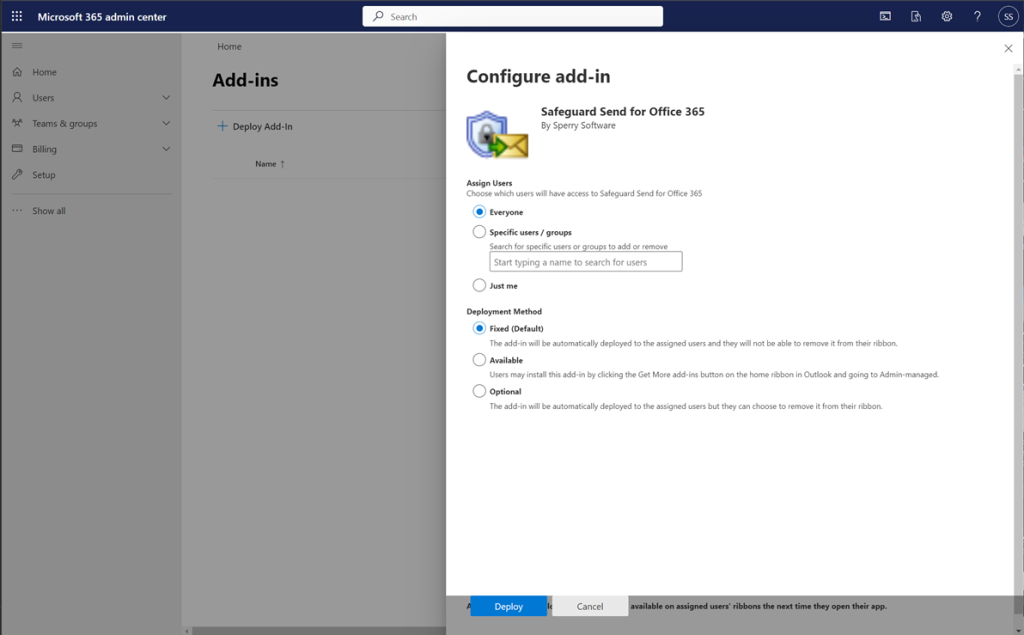
Step 6: Click Upload, then Assign Users (Everyone, Specific Users/Groups, or Just you) and also a Deployment Method (Fixed, Available, or Optional):
Step 7: Verify the installation. Taking into account the note below, verify that the add-in has been successfully installed by logging in to Outlook as one of the assigned users and sending an email outside your company (which is the default rule).
Note: that it can take up to 12 hours to see the add-in in Outlook after deploying so be patient. After that time, if you still don’t see the add-in please check this article about how to diagnose users not seeing add-ins.