

How to add a BCC in Outlook Emails
What is a BCC?
However, the BCC recipient of an email can easily “spill the beans” by performing a reply to all so they must be careful when replying to all, or use a tool like the Outlook Reply to All Monitor add-in.
How to Add a BCC in an Outlook Email
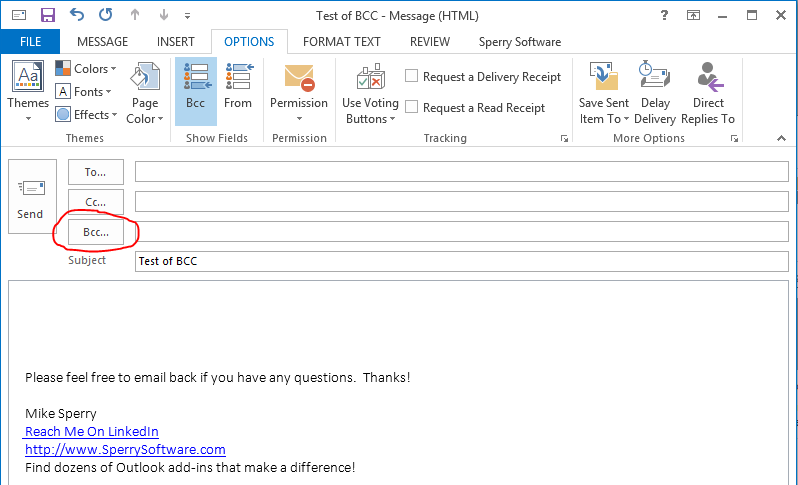
If you want to add a BCC recipient, you must first make sure that the BCC address line is showing in Outlook.
How to view the BCC address line:
- Compose a new email in Outlook
- Click on the Options tab
- Click on the BCC button in the Show Fields area of the ribbon
How to Automatically BCC All Outgoing Emails In Outlook
Outlook rules allow you to automatically add a CC recipient to emails you send, but not BCC recipients. However, you have two options: The first option involves the using an Outlook template instead of creating an email directly. The template is basically a saved but not sent email, partially filled out, that resides in either one of your Outlook folders or on say, your Desktop. To create a template, follow these steps:
- Create a blank email with the BCC field filled in
- Save it in Outlook or Save As to the desktop
- Now whenever you want to BCC, start with that email template each time you want to compose a new one
The second option is by using one of our three Outlook add-ins that all automatically perform the BCC action.
The first is the Always BCC add-in. You can control exactly when a BCC is applied, either through setting the add-in to check details in the email itself for example, based on who you’re sending to, sending from, the subject, keywords in the body, etc.) or by controlling it with the “BCC on/off” button in the Outlook toolbar.
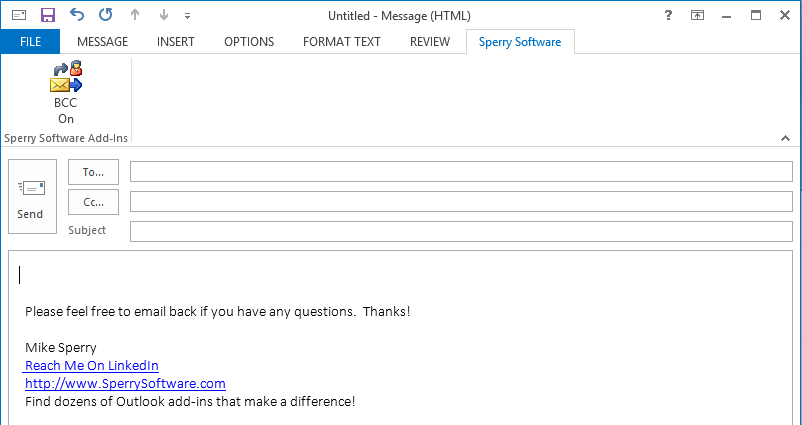
The second add-in is the Compliance Copies add-in (see the section below).
The third add-in is the Safeguard Send add-in, which allows you to automatically add a BCC to Outlook emails, but only under certain conditions, for instance if the email is going outside the company, or contains certain keywords.
How to Automatically Add a BCC To Emails But With Exceptions
Outlook is powerful, but this is something only the Compliance Copies add-in can do. Similar to the Always BCC add-in, this add-in automatically adds a BCC to your outgoing emails based on a more complex set of rules.
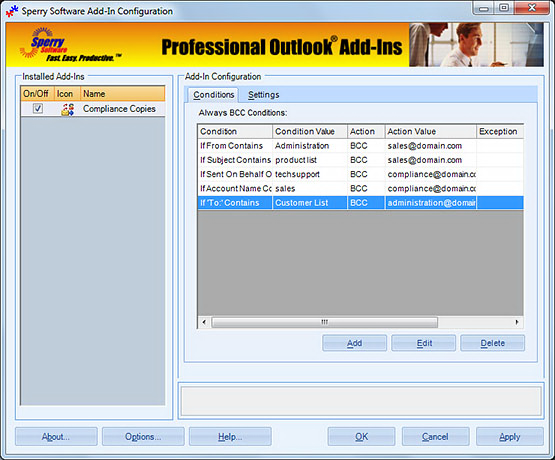
As you can see, the BCC recipient can vary depending on the contents of the email, who you are sending to, which account you are sending from, etc.
In addition, you can implement exceptions for the BCC so that for example, if you normally BCC all communications between co-workers but you don’t need a BCC when scheduling a lunch with your coworkers, this can be implemented.
Related Article: How to automatically add contacts to Outlook?
Need more information?
Download a free trial version of the Always BCC add-in.
Download a free trial version of the Compliance Copies add-in.
Discuss this topic in depth on Sperry Software’s LinkedIn page.
View a list of useful Outlook how to articles
Feel free to also chat with us by clicking on the “Live Chat” icon.