There are many automated systems in use today. Most of these systems stay quiet unless there’s a problem, and then they send an email to an IT administrator to take care of the problem.
However sometimes it works in the reverse – these systems (or even people) send out constant (say daily, or weekly) notifications that let you know when another process has completed (like backups for example, or the intake of end of month expense reports). In fact, that’s the whole point of the Schedule Recurring Email add-in, to send out regularly occurring emails on a recurring basis – and some people use it as a “heartbeat monitor” to make sure that a critical system is alive and well, and processing emails normally. Continue reading to find out how to detect missing automated emails in Outlook.
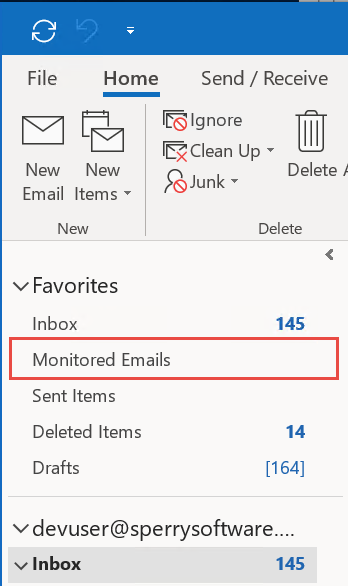
The simplest way to check if the email has arrived or not is to setup a new rule to move the email to a particular Outlook folder that you create. Let’s call that folder “Monitored Emails”. You then drag that folder into your Favorites folder and you can monitor the unread count there with just a glance:
This is what it should look like after dragging the folder to the Favorites area.
To do this, start by creating a new Outlook folder under your Inbox called “Monitored Emails” by right clicking your Inbox in the left hand Folder pane in Outlook and choosing “New Folder…”. Then create a new Outlook rule (see our article on how to create an Outlook rule if you don’t know how). In our example, we will create a rule to move emails that say “Backup Complete” to Monitor Emails. Finally, drag the “Monitored Emails” folder up to the Favorites area (as shown above).
Of course, the problem with this solution is that if the backup system goes down altogether because of an unscheduled reboot, or the power goes out, or the email that you are monitoring fails to arrive at all – then it’s all too easy for humans to forget to check for the expected email.
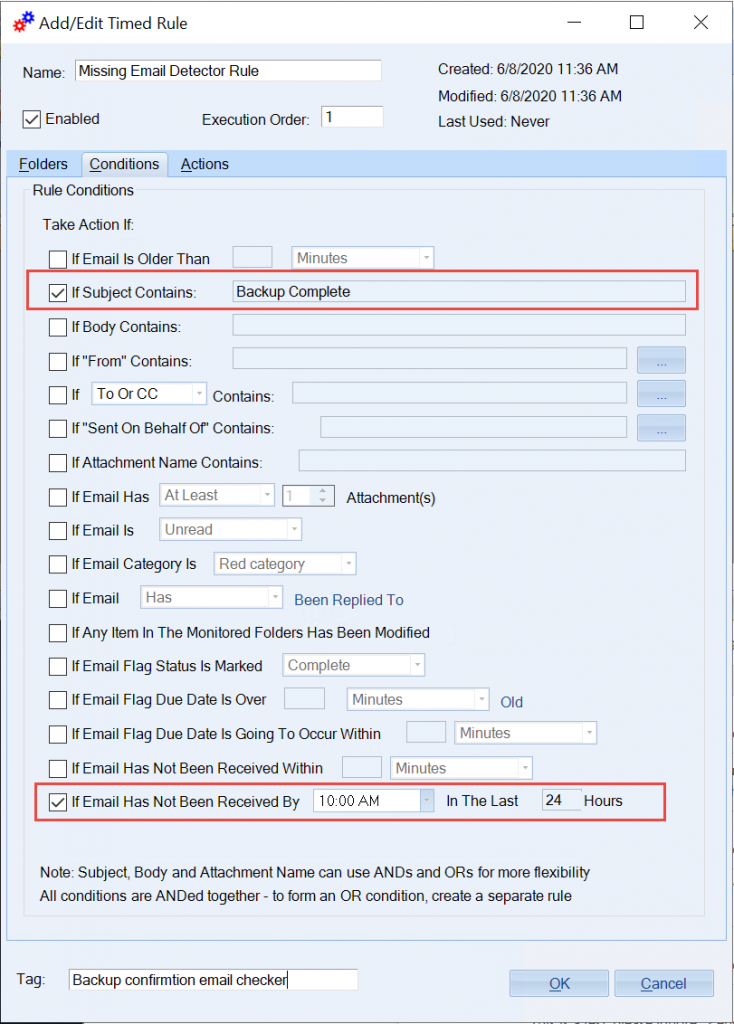
To deal with this scenario, the Outlook Timed Email Organizer add-in has a new feature: to detect the absence of an expected email. You simply decide which emails should be received and by when. In the example below, we are looking for an email with subject ‘Backup complete’ that should be received each day by 10 am.
The other option to detect missing emails is not highlighted, but is just above the lower red rectangle.
We start by creating a new Timed Email Organizer rule with our conditions (shown in the image).
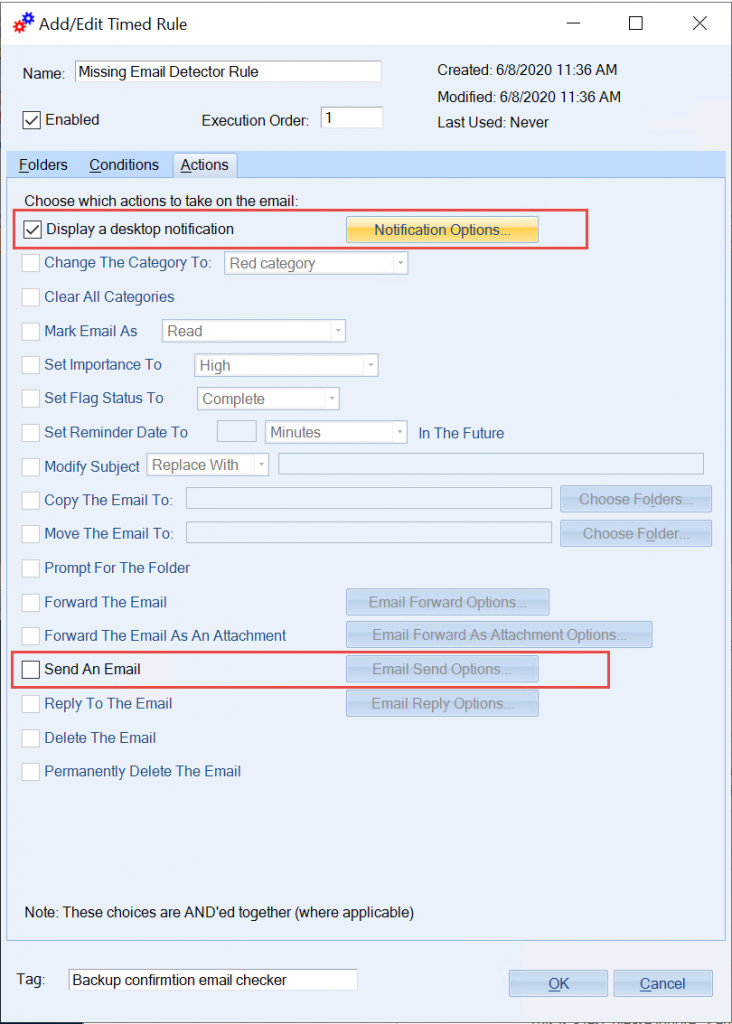
Next, we need to decide what to do if that email fails to arrive. There are only two choices when using either of the two conditions that detect missing emails: 1) is to send another email to yourself (or better to a group) or 2) display a desktop prompt. In this case, we will display a prompt that simply pops up and lets us know which email has not arrived as expected.
There are only two actions available when a rule is using either of the two conditions to check for a missing email.
Note that in this simple example, we are monitoring emails in the Inbox, but the Timed Email Organizer is capable of monitoring any Outlook folder you need (including shared mailbox folders).
Having people monitoring Outlook to detect a missing automated email is prone to error. With the Timed Email Organizer, it’s now possible to get your machine to alert you only when there’s a problem.