

FAQ’s
Compatibility and Platforms FAQs
Which versions of Outlook do your add-ins support?
Sperry Software offers both classic desktop Outlook add-ins and modern Microsoft 365 add-ins, so compatibility depends on the product you choose. Classic desktop add-ins are designed for classic Outlook for Windows, while modern Microsoft 365 add-ins are designed for supported Microsoft 365 Outlook environments, including Outlook desktop, Outlook on the web, and in some cases Outlook for Mac or mobile devices. Microsoft ended support for Office 2016 and Office 2019 on October 14, 2025, so we recommend using Microsoft 365 Apps or another currently supported Outlook version for the best security and support experience.
Do the add-ins work in Microsoft 365?
Yes. Many Sperry Software products work with Microsoft 365, but the exact experience depends on whether the product is a classic desktop add-in, a modern Microsoft 365 add-in, or a cloud-based service . Classic desktop add-ins work in classic Outlook for Windows, while modern Microsoft 365 add-ins are designed for supported Outlook and Microsoft 365 environments such as Outlook on the web, Outlook for Windows, Outlook for Mac, and sometimes mobile clients.
Which versions of Windows, Outlook, and Microsoft 365 do your add-ins support?
Our add-ins fall into two main categories. Our modern Microsoft 365 add-ins are designed for supported Outlook and Microsoft 365 environments, including Outlook desktop, Outlook on the web, and in some cases Mac and mobile, depending on the product. Our traditional desktop Outlook add-ins are designed for supported versions of Windows and desktop Outlook.
Windows 10 reached end of support from Microsoft on October 14, 2025, so we recommend Windows 11 for new installations and for the best support experience. Microsoft 365 Apps may continue to receive security updates on Windows 10 until October 10, 2028, but Microsoft notes that running Microsoft 365 Apps on an unsupported operating system can cause performance and reliability issues.
If you are still using Windows 10, some Sperry Software desktop add-ins may continue to run, but we may ask you to upgrade to Windows 11 if a problem is specific to Windows 10. Please check the product page for the specific add-in you plan to use, or contact support if you are unsure.
I am purchasing multiple licenses. Can I get a site license or a volume discount?
Yes, significant volume discounts are available when purchasing more than 10 licenses. Please see our corporate licensing page or email us directly at [email protected].
In addition, there is an immediate and automatic 10% discount that takes place if you purchase two or more add-ins. You don’t have to do anything special, and they can be the same add-in or different ones. The discount will take place when you check out.
Do you have downloads or trial versions?
Yes, we offer (mostly) fully functional two week trial versions. The downloads can be found in each add-ins Downloads tab, found in the detailed descriptions. For your convenience, we also have a list of all our downloads.
We say “mostly” because some limitations apply; for instance the Duplicate Eliminator series limits you to 100 duplicates removed, Send Individually will only allow you to send to 100 people before stopping, and the VCard Converter will only import (or export) 100 contacts before stopping. Otherwise, the add-ins are fully functional during the 14 day trial period.
How machines can I install this on?
Each license allows you to install on two computers for the same user. In other words, if you’ve got a desktop on your desk at work and a laptop you use to travel with – you can install on both. That does NOT mean you can install it on your laptop and your assistant’s desktop – that would be two users. To be sure read the End User License Agreement (EULA) that came with your software.
What is the difference between classic Outlook add-ins and Microsoft 365 add-ins?
Classic Outlook add-ins install directly on a Windows computer and work with classic desktop Outlook for Windows. Modern Microsoft 365 add-ins use Microsoft’s newer Office add-in model and can work across supported Outlook clients such as Outlook on the web, Outlook for Windows, Outlook for Mac, and sometimes mobile, depending on the product.

Sales FAQs

Where can I find Outlook how-to articles?
Yes, we have articles that cover a variety of common Outlook how to articles here.
How will I get my add-ins once I buy them from you? Can I download them?
For Microsoft 365 add-ins, installation may involve AppSource, Microsoft Marketplace, or administrator deployment depending on the product and plan.
For the classic desktop add-ins it works like this:
You choose the add-ins you like and add them to your cart.
Click ‘Checkout’ and provide your credit card information and email address.
You receive an email a few minutes later describing how to download the add-ins along with your order number, which is used to activate the add-ins (that is, go from trial mode to fully functional mode).
Therefore, be sure to provide a valid email address when you order. Note that there will be two, one for billing (receipt) information, and one for the order (download/installation instructions).
If you’ve downloaded the add-ins already, it is not necessary to uninstall and re-install. Simply restart Outlook, wait a few seconds for the trial mode window to pop up, and then click the “I bought it” button. Provide your order number and you’re all set!
How do I Purchase?
For the classic desktop Outlook add-ins, you can purchase most products directly from the Sperry Software website or follow the purchase path listed on the product page.
To start the check out process just click the “View your shopping cart” button located in the upper right of any page. This will bring you to a page to input some more information so we can finish the check out process.
For Microsoft 365 products such as Safeguard Send, you may also be able to purchase or subscribe through Microsoft marketplace channels depending on the plan.
Do the add-ins work with Exchange or Exchange online?
Many Sperry Software products work with Outlook connected to Exchange or Microsoft 365 mailboxes, but compatibility depends on the add-in and the Outlook environment. Classic desktop add-ins work inside classic Outlook for Windows, while modern Microsoft 365 add-ins use Microsoft’s Office add-in model and may work across multiple supported Outlook clients.
Do your add-ins work with Gmail or non-Microsoft email systems?
Sperry Software focuses primarily on Outlook and Microsoft 365 environments. Some Outlook configurations may connect to non-Microsoft mailboxes, but our add-ins are designed around Outlook, Microsoft 365, and Exchange-style workflows rather than Gmail-native or other email clients.
Do your add-ins work with Outlook for Mac?
Some do, but not all. Modern Microsoft 365 add-ins can work with Outlook for Mac when the product and account meet Microsoft’s requirements, while classic desktop COM add-ins are Windows-only and do not install into Outlook for Mac. Check the product page before purchasing if Mac support is required.
Can I suggest an add-in or request custom development?
Yes. If you have a product idea, we welcome suggestions and use customer feedback to guide future development. If you need a custom add-in or custom behavior, contact us with your requirements so we can determine whether a custom project is practical.
Do you offer Affiliate Programs or a Reseller’s License?
Yes. We work with resellers and channel partners, and interested partners should contact Sperry Software for current reseller or affiliate options.
Tech Support FAQs
How do I install/uninstall the add-ins?
Installation depends on the product type. Classic desktop add-ins are installed on a Windows computer and usually require Outlook to be closed during installation, while modern Microsoft 365 add-ins may be installed through AppSource, Outlook, a manifest file, or centralized Microsoft 365 admin deployment. For uninstalling, use the instructions for your product type because desktop add-ins and centrally deployed Microsoft 365 add-ins are removed differently.
To install a classic desktop Outlook add-in download the file to your local machine and save it somewhere, for example on the Desktop. Exit Outlook, then double click on the downloaded add-in setup file and follow the step by step instructions. The next time you run Outlook, the add-in will remind you that you are in trial mode and ask you for your order number and will continue to do so until you provide it. Provide the order number using the information you received from the order email.
You can follow these instructions to learn how to uninstall any of our add-ins.
For the modern Microsoft 365 versions, you can install a trial using Microsoft Marketplace. This method is usually a single click install that takes place automatically once you start a trial by clicking the “Get It Now” button.
Where can I get more help installing or using the add-ins?
You can always go to our Support page to find help using our knowledgebase, our support tools, live web chat, tech support email addresses, and generally how to get in touch with us.
I’m a returning customer. Can I re-download the Outlook add-ins?
Yes, and it’s free to upgrade if you purchased within the last two years. You can download the add-ins from each add-ins detailed description page, or you can view the list of all our downloadable add-ins. However, if you bought your add-ins more than two years ago, you will need to purchase the upgrade (although we have significant discounts for previous customers). See our upgrade policy for more information.
How do I tell which version of Outlook I have?
You can view this article from our Knowledge Base, which shows you how to determine your version of Outlook (including whether it is 32-bit or 64-bit).
I installed the add-in, but I can’t find it?
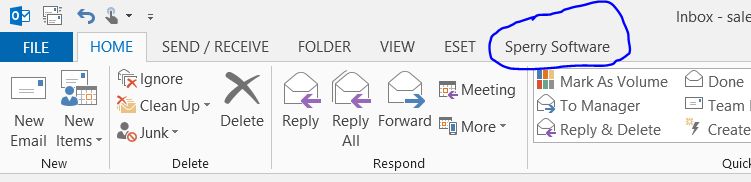
Because the add-ins are integrated into Outlook, and become part of Outlook, they can be found in Outlook. Just look for the Sperry Software tab in the main Outlook window:
If you don’t see this tab, then it could be because of mismatched “bitness” – that is, a 64-bit version of the add-ins was installed into a 32-bit version of Outlook. This article can show you how to tell if you have 32-bit or 64-bit Outlook, but the simplest thing to do in this case is to uninstall the 64-bit version, then download the 32-bit version and install that.