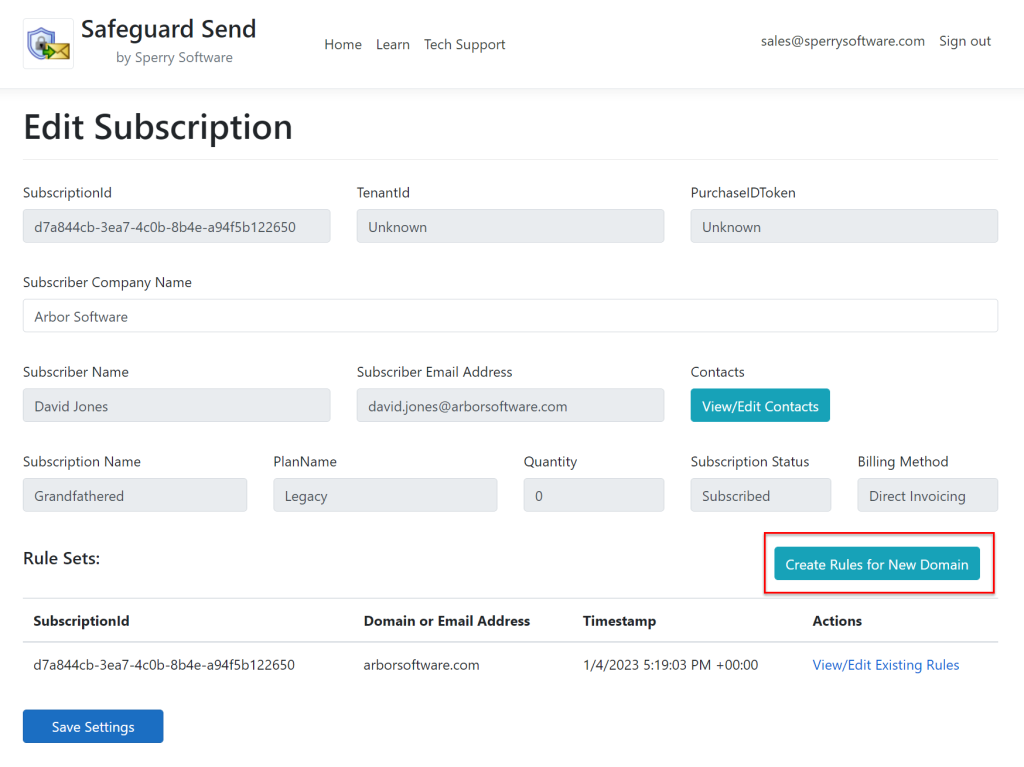
When first logging into the Safeguard Send dashboard, you are looking at your main subscription page.
In general, a subscription contains information about the state of the subscription (subscribed, unsubscribed, etc. along with other information like the number of seats, etc.) and one or more rule sets. A rule set contains the rules for exactly one domain, normally the company domain you signed up with.
Now that you know that a subscription contains a rule set, and that a rule set contains the individual rules, you can edit a rule (say change the wording of the prompt) by clicking on the rule set for your company (using the Arbor Software subscription as a guide):
A view of the Home page, where you can edit your subscription.
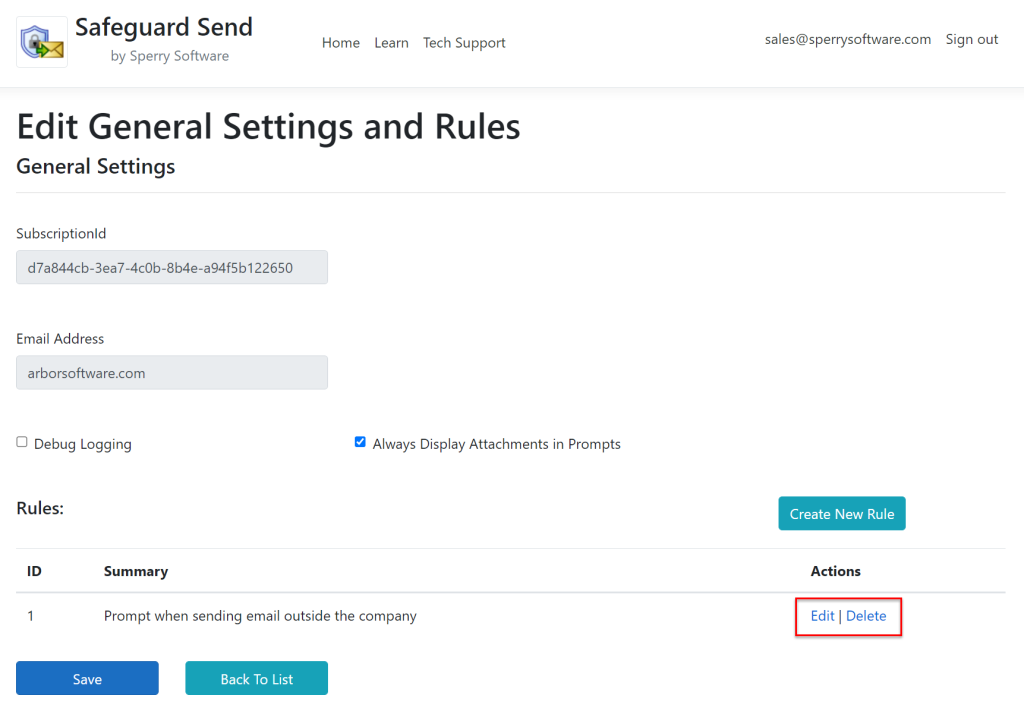
From here, you can click on the rule you wish to edit, for example, the one that was created by default when you first signed up:
Here we can see that there is just one rule, to prompt when sending an email outside the company.
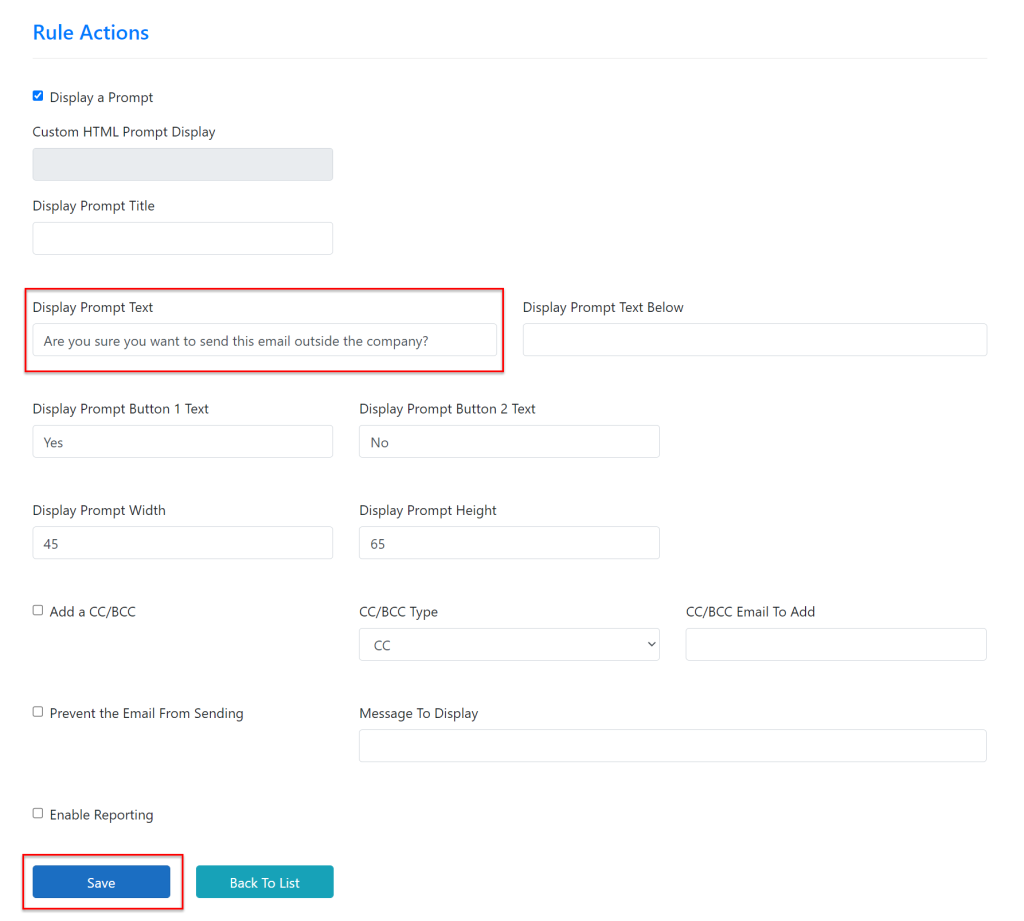
The rule editing screen is divided into two parts, the conditions and the actions. You can change the rule prompt wording in the Action section:
The top half of this window is where the Conditions are, but they are not shown in this view.
Click Save and that’s it! Anyone using the add-in will see the changes take effect immediately.