

Send Individually
Send out your newsletters, press releases and other announcements to individual recipients. Individually addressing emails allows your email to make it through more spam filters and raises response rates.
Need to send personalized mass emails in Outlook? Or send an email marketing campaign to many people but don’t want to put in the work of performing a Microsoft® Word Mail Merge or risk having your email being flagged as spam using a BCC? Then our Outlook Send Individually add-in is for you. This bulk email sender in Outlook sends an email that you create to each of your recipients, one at a time. It performs a mail merge in three simple steps, right from your own email account. Individually addressing emails allows those emails to make it through more spam filters and raises response rates. Don’t you pay more attention to emails that are directly addressed to you? Now you can do it with ease. It’s perfect for sending out your newsletters, press releases, business announcements, or other marketing emails.
How the Outlook Send Individually add-in works:
1) You create an email newsletter or other announcement.
2) Add your recipients to the “To” field.
3) You press the “Send Individually” toolbar button.
That’s it! Each of your recipients will get an email addressed just to them, in the “To” field, and they will not see any other email addresses, because it’s been sent just to them. It couldn’t be easier to send mass emails in Outlook.
In addition, you can compose your email the way you normally would except leaving the To field blank, then click on the Send Individually button. It will prompt you for a list of email addresses (from any Excel file, CSV file, or plain text file with one address per line) and it will then send one copy of the email to each recipient, individually addressed.
Typical uses:
- Small business owners can send newsletters to their clients
- Realtors can send notices about a new home for sale
- Recruiters can send emails about new job openings
There’s no end to the different ways this powerful Outlook Send Individually add-in can be used. And since it operates out of Outlook, you can maintain a close personal relationship with your recipients without worrying about how much each email is going to cost.
“Thanks for your awesome product. My company is small and we have just started sending out marketing emails to supplement our direct sales force efforts. I had no way of knowing how many of our emails were going to Junk or Spam folders. Now, with your software, I think I can be pretty confident that each recipient is receiving the info.”
– Jim Bentley, Hartland Southwest
Highlights
- Sends email marketing to each of your recipients, one at a time
- Adds a convenient "Send Individually" Outlook button
- Easily handles distribution lists, contact groups, and Excel lists
- Easy personalization of each email
- 2 years of chat, email, and phone support
- 2 years of free upgrades
Features
- Adds a convenient "Send Individually" button to your toolbar for easy access
- Supports any email format, plain text, Rich Text, or HTML for unlimited creativity
- Easily handles distribution lists
- New! Supports input from an Excel file, CSV file or TXT file for larger mailings
- For smaller mailings, supports adding recipients with the standard "To" button
- Allows customization of each email with keyword substitution (first name, last name, etc)
- Creates reports to see who has been sent and when
- Works with Office 365, Outlook 2021, 2019, 2016 (both 64-bit and 32-bit)
- Integrates directly into Outlook and is invoked from within Outlook
- Optionally delays sending to avoid overloading your ISP (for larger mailings)
- Optionally BCCs another of your email addresses - perfect for Salesforce and other CRM tools
- Optionally sends unique attachments per recipient that are specified in an Excel file
"I wanted to find a way to add pdf attachments to mailmerges and I came across your software!
I’ve been driving myself crazy trying to send operational mail merge emails with attachments and BCC’ing our crm. Office can’t handle it without playing around in Power Automate, and I just don’t have the time to do that. I’m so relieved to have found this tool. Thank you! No, really!"
- Mark, Kansas, United States
*Click on the images to enlarge.
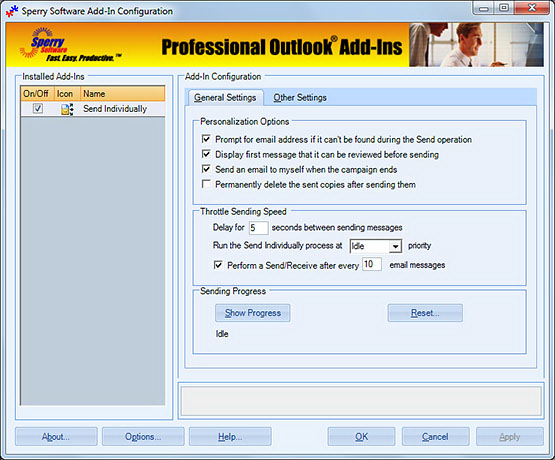

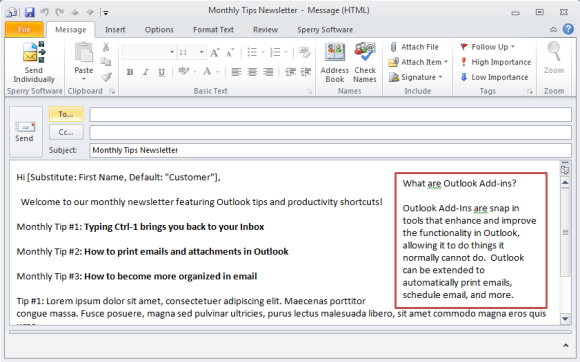
You can personalize the body of each email with the name of the person you're sending to, and you can view a report of the results when it's finished.
"It does what I need which is keeping emails from getting blocked. I send out group emails and sometimes the servers block them due to the size of the group."
- Daniel Corby
Downloads
14-Day Trial Outlook Downloads
- These versions are for classic desktop Outlook and not "new Outlook" - see How to tell if you are using classic desktop or new Outlook.
- Our trial versions are fully functional and are the production version.
- The version you choose below is dependent on whether you have 32-bit or 64-bit Outlook - see How to tell if you have 32-bit or 64-bit Outlook installed for help.
- If you need to uninstall for any reason, review our instructions for uninstalling our add-ins.
- View our End User License Agreement.
Version: 8.2.9687.13558
Last Updated On: 2026-07-10
For Windows 11, Windows Server 2016 or higher;
And Microsoft 365, Outlook 2024, Outlook 2021, Outlook 2019, and Outlook 2016
Send Individually for Microsoft 365/Outlook 2024/2021/2019/2016 (32-bit)
Send Individually for Microsoft 365/Outlook 2024/2021/2019/2016 (64-bit)
Version 8.1:
Version: 8.1.8918.27444
Last Updated On: 2024-06-01
For Windows 10, 11, Windows Server 2016 or higher;
And Office 365, Outlook 2021, Outlook 2019, and Outlook 2016
Send Individually for Microsoft 365/Office 365/Outlook 2021/2019/2016 (32-bit)
Send Individually for Microsoft 365/Office 365/Outlook 2021/2019/2016 (64-bit)
All downloadable add-ins:
View the list of all our downloads (in alphabetical order)
"I’m an Avon representative who has been collecting email addresses through events and other various means for years. The Avon experience for both customers and team members has recently improved quite a bit and I’m looking to share this information via email. I also work full time, so I’m in need of the most time savvy method to communicate the same messages multiple times to customers, my existing team and prospective new team members."
- Lisa, CA, United States
Question: What effect will this add-in have on my CRM software?
Answer: There is no direct effect, but there is an option to always BCC your CRM email address so that your CRM software can stay abreast of your communications to your customers/clients/contacts.
Question: Will this add-in allow our team to send mail merged emails from our shared mailbox?
Answer: Yes.
Question: Am I limited to how many people I can send to?
Answer: Not by this software, but your ISP (Internet Service Provider) may limit the number of emails that you can send in one day (to avoid suspected spamming, usually 250 emails per day max). You'll need to contact your ISP if you begin to receive many bounced emails for no apparent reason. To help mitigate this effect, there is a throttle option in the software to slow the rate at which the emails are sent. In fact, there's an automatic built in three second delay to prevent this tool from being misused as a SPAM tool, because we all just want a legitimate way to send out our valid newsletters right?
Question: You mentioned SPAM. How can I comply with the CAN-SPAM act (in the US)?
Answer: We strongly suggest you go to the source - the FTC article on how to comply with the CAN-SPAM act.
Question: Do you have any other advice on sending newsletters?
Answer: Yes, we have written a general guide on how to send email newsletters, useful whether you use our add-in or not.
Question: Will other people be able to see who else is getting the email?
Answer: No. When you fill in the To field (or perform a merge that automatically populates the To field), because there is only one addressee that is the only address that will show up at the receiver's end. It's no different than if you were to personally compose an email to that one person.
Question: Can my emails be customized with the name of each person?
Answer: Yes. If you are using contacts, you can substitute a keyword for the first name, last name, company name, etc. If you are using names from a file (like an Excel XLS or XLSX file) then you can substitute any column into the body of the email. Furthermore, if your Excel file has a column that points to a filename, the add-in will attach that file to that particular email.
Question: Doesn't Outlook already have a mail merge feature? If so, why should I get this add-in?
Answer: Yes Outlook has a mail merge. It requires that you have Microsoft Word as well, and you can even get free training from Microsoft on how to mail merge. However, the Sperry Software add-in is much simpler to use because it is geared to email only, supports sending attachments, BCC (for CRM systems), and built in spam avoidance delay. In addition, free tech support is available to help you for two years, just in case the help file is not clear enough.
Question: Why should I choose this option over web based email senders?
Answer: Why pay monthly? Or why pay by the number of people in your email campaign? You already have Outlook and you can send as many emails as you need to for free, all you need is this add-in, which is a one-time price, comes with two years of free upgrades and two years of tech support. From a human!
Read More from Our Blog:
- Why You Can’t Recall an Email in Outlook After a Bulk Email Mistake
- What the Met Police Email Breach Teaches About Group Email Privacy in Outlook
- Send Individually for Microsoft 365 Is Now on Microsoft AppSource
- Introducing Send Individually for Microsoft 365
- All New Versions (v8.0) Are Now Released Out of Beta
- Announcing Version 8.0 of Our Desktop Add-Ins
- 2021 Road Map
- Weekly Fixes for 8/26/2013
- Send Individually for Outlook 2013
- Weekly Fixes for the week of June 24, 2013
