

Quick Text Hotkeys
Save time by quickly inserting frequently used text into emails with a single keystroke. Perfect for header/footers, business signatures, subject lines, anything that you repeatedly type into an Outlook email, contact, note, etc.
Do you find yourself typing the same words or phrases frequently? If so, you can save time with the Quick Text Hotkeys add-in. This Outlook add-in inserts canned responses and other predefined text by mapping words or phrases to a function key. Similar to a text macro or Word’s AutoText feature, it’s just one click to insert as much text as you need. Perfect for inserting frequently used text like Microsoft® Outlook® signatures or responding to tech support requests.
You can save time by inserting with a single keyboard click frequently used attention lines, header/footer text, business signatures or family/friend signatures, subject lines, anything that you can type into an Outlook email, contact, note, etc. It’s perfect for the busy professional – it gets those emails out so you can get the job done.
In addition, you can now insert your HTML text and it will retain the font, or it can take on the font that is currently being used. Insert your text with a function key (like say, F5) or use a toolbar button that the Outlook Quick Text Hotkeys add-in can create for you.
Do you need to save even more time responding to emails? Check out our Quick Text Hotkeys Pro, and see this table to compare the difference between the versions.
“Best time saver for companies that want to improve customer service for their business via faster response times in order to address customer needs.”
– Joe Vawters, TX, United States
Highlights
- Saves time by inserting predefined text with a single click
- Optionally inserts the current date and time
- Now supports inserting HTML
- Supports inserting directly into Subject lines
- New! Create buttons to insert your text
- 2 years of chat, email, and phone support
- 2 years of free upgrades
Features
- Allows you to map text to functions keys or keyboard keys in combination with Ctrl, Shift, and Alt buttons
- Stores an unlimited number of text entries
- Optionally inserts the current date and time along with your other text
- Supports many different date and time formats
- New! Supports full HTML based insertions
- Automatically inserts the text at the cursor as if you typed it in at the keyboard yourself
- New! Now supports insertions directly into the Subject line of an email
- Easily recall your mapped hotkeys with a toolbar button that displays your quick text entries
- New! Optionally create buttons to add to your toolbar to your quick text entries
- Supports all formats - works with plain text, RTF or HTML formatted items
- Works with Office 365, Outlook 2021, 2019, 2016 (both 64-bit and 32-bit)
*Click on the images to enlarge.

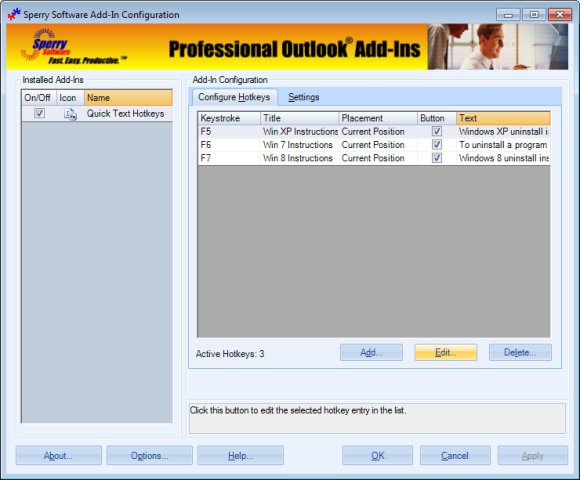
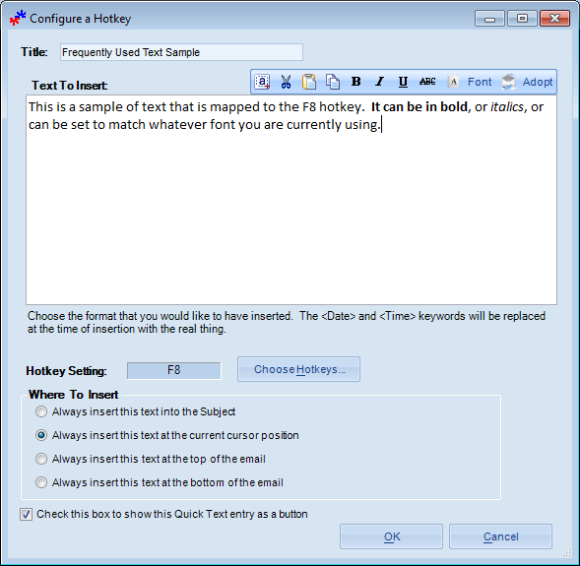

Here are several screenshots showing three sample hotkey entries along with three toolbar buttons that have been configured to show up when composing an email. Your most frequent text strings can be inserted with the click of a button.
Downloads
14-Day Trial Outlook Downloads\r
- \r
\t
- These versions are for classic desktop Outlook and not "new Outlook" - see How to tell if you are using classic desktop or new Outlook. \r \t
- Our trial versions are fully functional and are the production version. \r \t
- The version you choose below is dependent on whether you have 32-bit or 64-bit Outlook - see How to tell if you have 32-bit or 64-bit Outlook installed for help. \r \t
- If you need to uninstall for any reason, review our instructions for uninstalling our add-ins. \r \t
- View our End User License Agreement. \r
\r Version: 8.2.9687.13522
Last Updated On: 2026-07-10
\r For Windows 11, Windows Server 2016 or higher;
\r And Microsoft 365, Outlook 2024, Outlook 2021, Outlook 2019, and Outlook 2016
\r Quick Text Hotkeys for Microsoft 365/Outlook 2024/2021/2019/2016 (32-bit)
\r Quick Text Hotkeys for Microsoft 365/Outlook 2024/2021/2019/2016 (64-bit)\r
\r \r Version 8.1:
\r Version: 8.1.8918.27072
Last Updated On: 2024-06-01
\r For Windows 10, 11, Windows Server 2016 or higher;
\r And Office 365, Outlook 2021, Outlook 2019, and Outlook 2016
\r Quick Text Hotkeys for Microsoft 365/Office 365/Outlook 2021/2019/2016 (32-bit)
\r Quick Text Hotkeys for Microsoft 365/Office 365/Outlook 2021/2019/2016 (64-bit) \r
\r All downloadable add-ins:\r
\r \r View the list of all our downloads (in alphabetical order)
More Information
Lawyers and law firms will find this add-in indispensable since the add-in can, when composing an email, add a toolbar button that will insert phrases like "ATTORNEY/CLIENT PRIVILEGE COMMUNICATIONS" into the subject of an email.
It's perfect for email support, customer emails, and anywhere where repetitive text is frequently needed.
Read More:
- All New Versions (v8.0) Are Now Released Out of Beta
- Announcing Version 8.0 of Our Desktop Add-Ins
- Introducing Quick Text Hotkeys Pro
- Quick Text Hotkeys Pro Add-In
- Tips to Improve Working From Home
- Date Display Format Tricks
- New 7.1 Versions – Fixed Bugs
- Dual Monitors, Plus Auto Print Gets Page Numbers in Email
- New Version of Schedule Recurring Email (and Monthly Fixes)
- Reply To All Monitor released out of beta
Start responding to your emails faster and save time with the Quick Text Hotkeys Pro add-in. This Outlook add-in, just like it’s little brother Quick Text Hotkeys, inserts your predefined text with a click of a toolbar button or function key but so much more!
The Timed Email Organizer add-in keeps your Inbox neat and tidy by organizing emails using rules. These rules aren’t associated with Outlook rules, and you can even test out your rules before implementing them.
