

A records request lands on your desk: every email about a project, from a date range, produced as one document. The obvious move is to combine multiple emails into one PDF and send it. Then you discover the PDF tool you have saves one file per email, or the option you used last year is missing, or the requester cannot open what you produced. This guide covers how to do it from classic Outlook, and the choices that matter when the PDF is going to someone outside your organization.
We wrote it after a customer gathering emails for a right-to-know request asked us exactly this, and then followed up with “I don’t see that option. Do I have the wrong version?” It is a fair question, and the answer is often yes.
Why Outlook Alone Gives You a Pile of Files
Classic Outlook for Windows does not save emails directly to PDF. The usual workaround is printing each message to a PDF printer, which is tedious and produces separate files, with attachments handled separately (How to Convert Email to PDF). For a request with dozens or hundreds of messages, you end up stitching files together by hand and hoping the order and the attachments survive.
How to Combine Multiple Emails Into One PDF
Step 1: Check which Save As PDF you have
This is where the “wrong version” question comes from. Our two PDF add-ins look similar but do different jobs:
- Save As PDF (standard) saves each email, with its attachments, into its own PDF file. Select ten emails and you get ten PDFs.
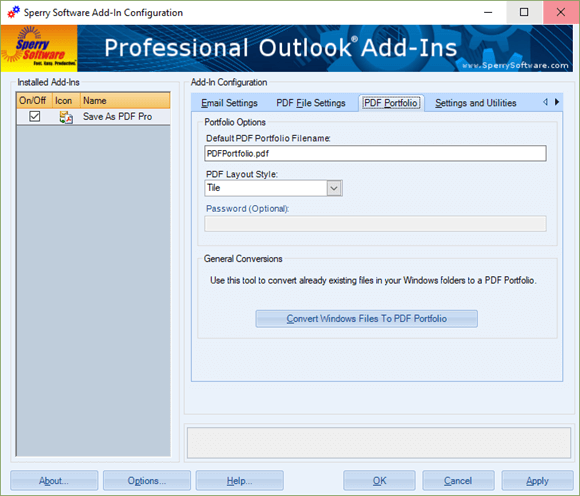
- Save As PDF Pro can also save multiple emails and their attachments into one file, either a single continuous PDF or a PDF Portfolio, in the order email 1, its attachments, email 2, its attachments, and so on.
Pro adds a separate toolbar button for the PDF Portfolio, alongside the regular conversion button (Save As PDF Pro Now Supports Rules). If you only see one Save As PDF button on the Sperry Software tab, you most likely have the standard version. The feature comparison lists the differences.
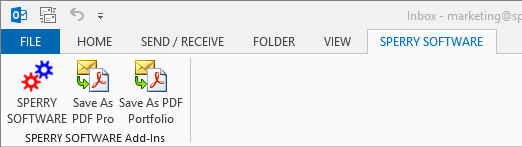
One more check: both add-ins run in classic desktop Outlook, not new Outlook. If the Sperry Software tab is missing entirely, see how to tell if you are using classic desktop or new Outlook.
Step 2: Gather the responsive emails in one folder
Search, then move or copy every responsive message into a dedicated Outlook folder for the request. This gives you one place to review, a count you can write down, and a clean set to convert. Sort the folder by date if order matters to the requester.
Step 3: Pick the right output format
This decision matters more than most people expect, because the file is leaving your hands.
- Single continuous PDF. One long file in the order email, attachments, next email. Every PDF reader can open it, and Save As PDF Pro bookmarks each email and attachment for navigation.
- PDF Portfolio. A structured container that shows its contents as tiles and can hold files that are not PDFs. It is a good organizing tool, but the reader’s PDF software has to support Portfolios.
Both descriptions come from our announcement of the single-file format, which was added at a customer’s request. For a member of the public who may open your file in a browser or on a phone, the single continuous PDF is the safer choice. Keep Portfolios for internal archives where you control the reader.
Step 4: Convert, using a new file name for each request
Select the emails in your request folder and use the Pro button, or use batch mode to process the whole folder at once. Here is a detail that catches people: when saving to a Portfolio or single PDF that already exists, Save As PDF Pro appends to the end of it. That is useful for an ongoing archive. For a records request, it means running the conversion twice into the same file can duplicate everything. Start each request with a new, clearly named file.
Step 5: Check what did not convert
Some attachments, such as CAD drawings or videos, cannot be converted to PDF. Save As PDF Pro can move those emails to another folder, flag them with a category, or include the original file in the PDF (Save As PDF Pro). Before you send anything, look at those exceptions and decide how to produce them.
Before You Release the File
Review and redact
The combined PDF contains everything: the emails, their attachments, and emails attached to emails. That completeness is the point, but it also means personal details, internal comments, or attachments you did not expect will be in the file. Review it, and redact with your PDF editor according to your organization’s records policy. Save As PDF Pro does not redact for you.
Keep the originals
The PDF is a copy you produce, not a replacement for the original messages. Keep the request folder in Outlook, or retain the emails as your policy requires, so you can answer follow-up questions or reproduce the file later.
Quick Answers
Can the standard Save As PDF combine emails? No. It saves an email and its attachments into one PDF per email. Combining several emails into one file requires Save As PDF Pro.
Do attachments stay with their email? Yes. Each email is followed by its own attachments in the combined file.
Can I try it first? Yes. The trial downloads on the Save As PDF Pro page are fully functional for 14 days, so you can test it on a sample folder before the real request.

