
The ICO bulk email guidance makes a point many organizations skip past: “While BCC can be a useful function, it’s not enough on its own to properly protect people’s personal information” (ICO, Email and security). The regulator says it has seen hundreds of breach reports where a sender misused the BCC field.
The last few weeks show why. On October 26, Stockton Council sent a mass email without BCC, and one recipient said about 250 addresses were visible (BBC News). On November 4, Takamatsu City in Japan sent a contest email with recipients in To instead of BCC, and its fix was to have multiple staff cross-check BCC settings on external group emails (KSB News). The next day, a Kanagawa high school did the same thing to 34 program applicants (Kanagawa Prefecture).
Notice the responses: apologize, remind staff, add another human check. Those are organizational measures. The ICO guidance also asks you to assess technical ones. This article maps each measure the ICO lists to what you can actually configure in Outlook, so you can show a reviewer more than a reminder email.
What the ICO Bulk Email Guidance Actually Asks For
The guidance uses three levels. You must assess which technical and organizational measures are appropriate. You should train staff, and you should consider bulk email or mail merge services rather than relying on BCC alone. Then it lists measures you could use:
- Rules in your email system that alert and warn senders when they use the CC field
- A delay, so errors can be corrected before email leaves the organization
- Turning off auto-complete so the system stops suggesting addresses
It also says that if you are sending to only a small number of recipients, you could send each one separately, and that you should regularly review and test your measures.
Why Another Human Check Is Not a Technical Measure
A second person checking BCC is better than nothing. But it fails the same way the first person did: it depends on someone remembering, on a busy day, for an email that feels routine. The incidents above were not exotic. They were contest notices, event updates and program confirmations.
A technical measure works differently. It looks at every outgoing email at the moment of sending, whether or not anyone remembered it was risky.
Mapping Each Measure to an Outlook Control
Alert when many people are visible on an email
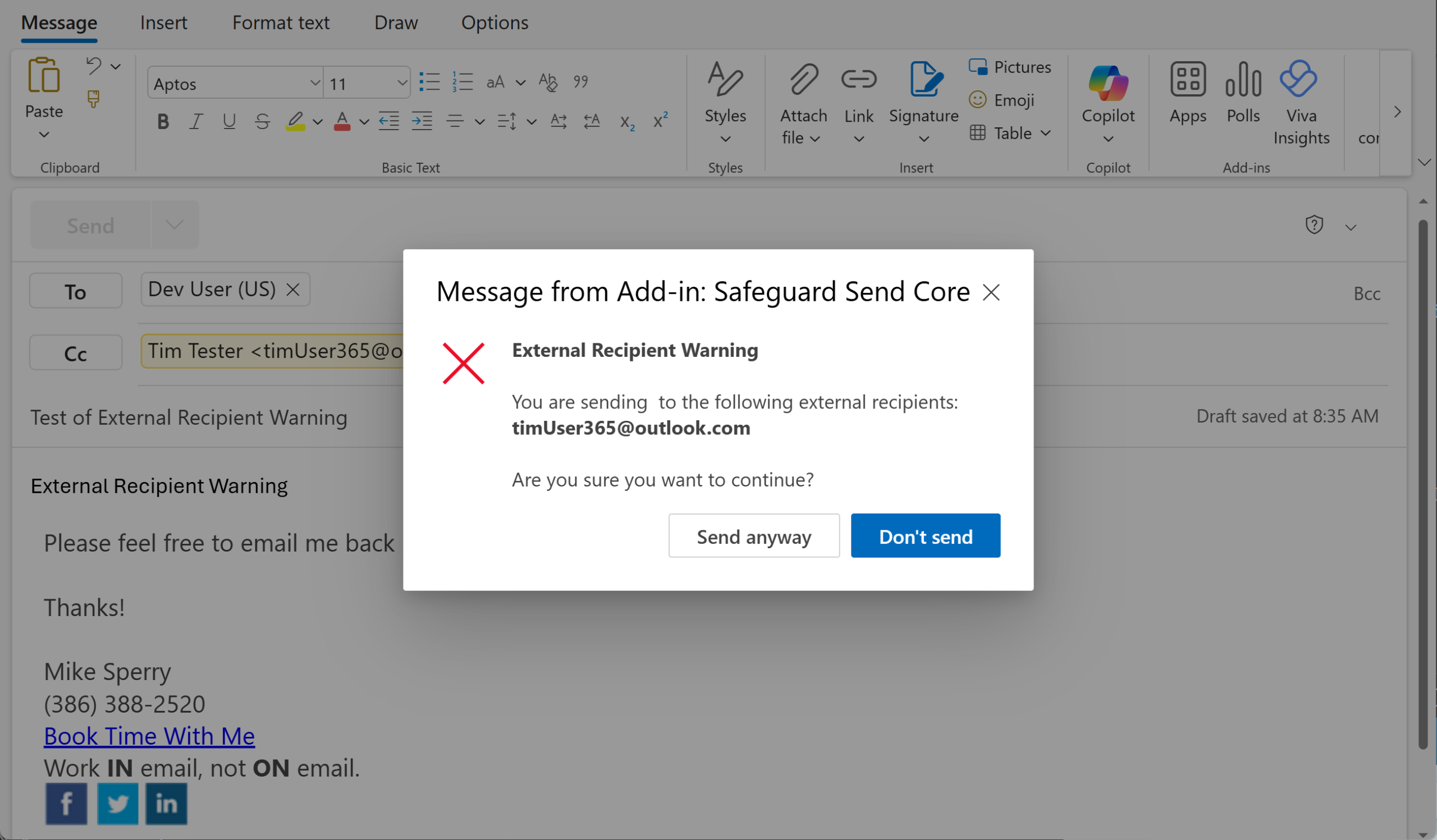
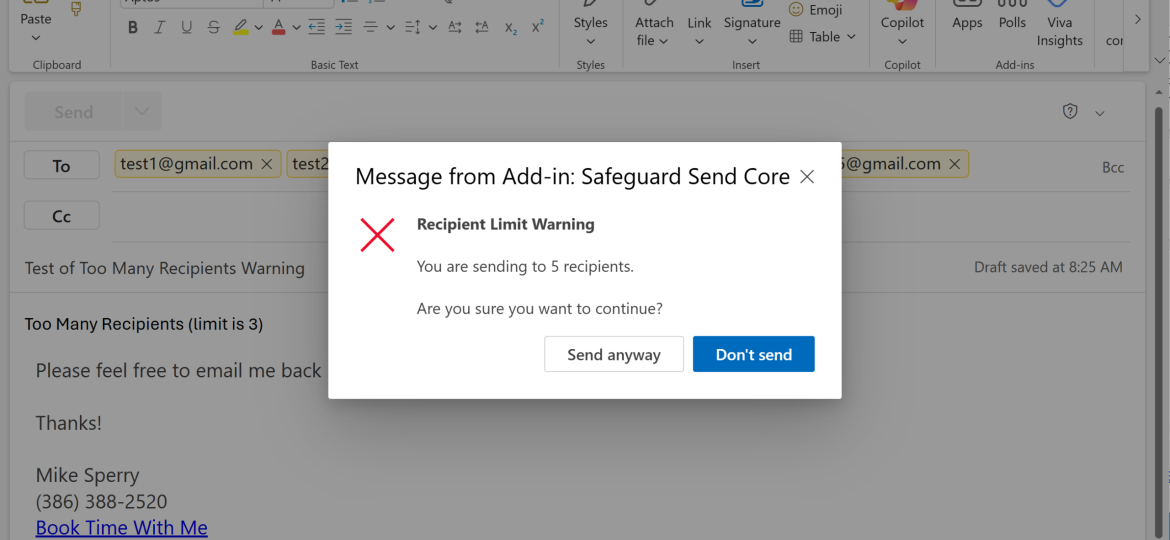
This is the ICO’s first suggestion, and it is where Safeguard Send fits. Both Safeguard Send Core and Safeguard Send for Microsoft 365 can prompt when an email has more than N recipients, and can combine that with a rule that the email is going outside the company. The release notes for Safeguard Send for Microsoft 365 add an option to ignore BCC recipients when counting (release notes), so a properly addressed BCC mailing does not trigger the warning, while the same list pasted into To or CC does.
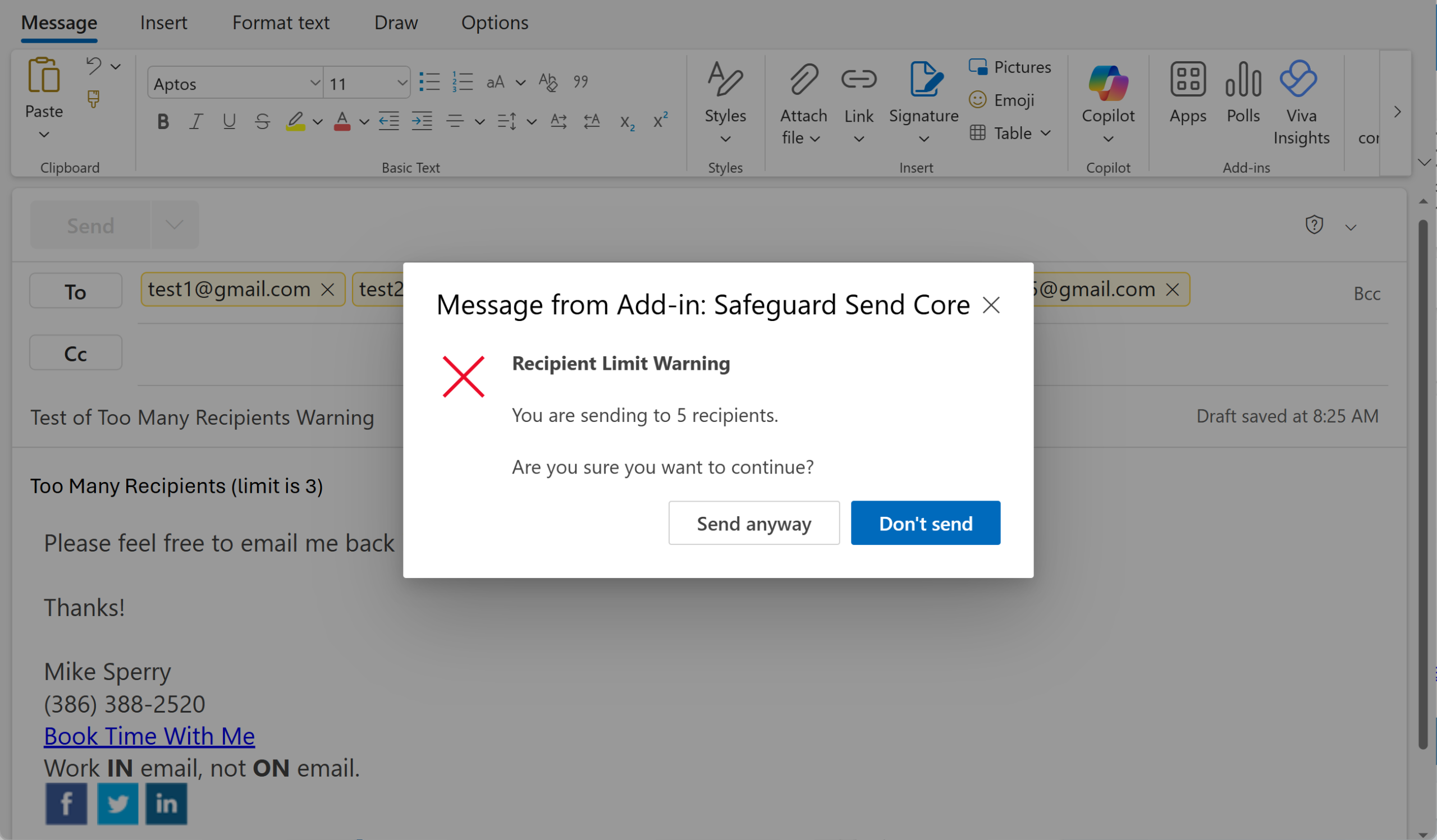
In Safeguard Send for Microsoft 365 you control the prompt text, so the warning can say exactly what you want staff to do, for example “More than 10 external people can see each other’s addresses. Move them to BCC or use mail merge.” Use the second line of the prompt to link to your email policy (Creating or Editing a Rule). That puts your training in front of the user at the one moment it matters.
For lists that must never go out visible, Safeguard Send for Microsoft 365 can also prevent the email from sending until it is corrected, instead of asking.
Warn on reply-all
Once a list is exposed, the second wave is reply-all. Stockton’s follow-up had to ask recipients not to reply all. Both editions include a reply-all warning rule, so your own staff get a prompt before they add to the thread (Safeguard Send Core FAQs).
Set a delay
Safeguard Send does not delay sending. Outlook can: Microsoft documents delay and schedule options that hold a message before delivery (Microsoft Support). A delay helps if someone notices the mistake right away. A send-time prompt helps if they would not have noticed at all. They are complementary, not interchangeable.
Turn off auto-complete, or make it safer
Turning off auto-complete removes one source of wrong addresses but slows everyone down. A middle path is to keep it on and make sure the prompt shows the actual email address of each recipient, not just the display name, which Safeguard Send for Microsoft 365 does. We covered that trade-off in dealing with Outlook’s auto-complete feature.
Send separately when it matters
For sensitive information, the ICO points to mail merge, bulk email services or secure transfer rather than BCC. Safeguard Send is not a mail merge tool. Its job is to catch the email that should have gone through one of those routes but did not.
Review and test
The ICO expects measures to be tested. Rule changes can be tested on a small group before rollout (How to Test Your Rule Changes), and the rules themselves are visible in one dashboard, which gives you something concrete to show when someone asks what controls are in place.
What This Does Not Cover
A prompt is not a guarantee. A user can still click Send anyway, which is why the prompt wording matters and why blocking is available for the highest-risk cases. Safeguard Send does not encrypt email, does not replace data loss prevention, and does not decide for you which measures are appropriate. That assessment is yours, and the ICO is clear about it. Edition differences matter too; check the version differences page before you plan rules.
The Bottom Line
“We reminded staff” answers one line of the ICO bulk email guidance. A send-time rule that catches a visible external list answers another, and it works on the day nobody remembers. If your current answer to “what technical measures do you have?” is a second pair of eyes, it is worth adding a control that does not get tired.

Related Posts