
Different teams send different kinds of email—and they should not all have to work under the exact same warning rules.
With the new Groups feature in Safeguard Send for Microsoft 365—and available by default in Safeguard Send Core—administrators can assign tailored email-warning rule sets to specific teams. That means you can apply stricter safeguards where the risk is highest, while keeping everyday communication efficient for teams that send a high volume of external email.
Safeguard Send helps organizations prevent costly outgoing-email mistakes by displaying configurable warning prompts before messages are sent. Now, Groups makes it easier to manage that protection at the department or policy level.
Why Groups matter
Until now, organizations generally used one domain-level rule set for all users. That works well when every employee needs the same safeguards—but it can become limiting when different teams have very different responsibilities.
Consider an organization with two teams:
-
Finance regularly sends sensitive financial information and needs confirmation of every external recipient.
-
Sales communicates with outside prospects and customers all day, so the same strict confirmation policy could add unnecessary friction.
With Groups, the IT administrator can create a Finance group, add Finance users, and assign that group a stricter set of Safeguard Send rules. Sales users can continue to use the company’s normal domain-level rules.
The result: more targeted protection, less compromise.
How rule priority works
Safeguard Send evaluates rule sets in a clear order each time a user clicks Send:
-
Individual rule set — Rules created specifically for one user take priority.
-
Group rule set — If the user has no individual rule set but belongs to a Group, the Group’s rules apply.
-
Domain rule set — Company-wide rules apply to everyone else by default.
This structure provides a practical balance between centralized policy control and exceptions for specialized users.
A user can belong to only one Group at a time. In addition, a user with an existing individual rule set must have that individual rule set removed before they can be added to a Group.
Create a Group in minutes
Creating a Group begins in the Rule Sets section of your Safeguard Send Dashboard.
-
Click Create New Group:

-
Enter a unique, descriptive Group Name, such as
Finance,SalesTeam, orLegal. - Add user email addresses.
-
Click Save Group.
-
Select View/Edit Existing Rules to customize the warning rules for that Group.
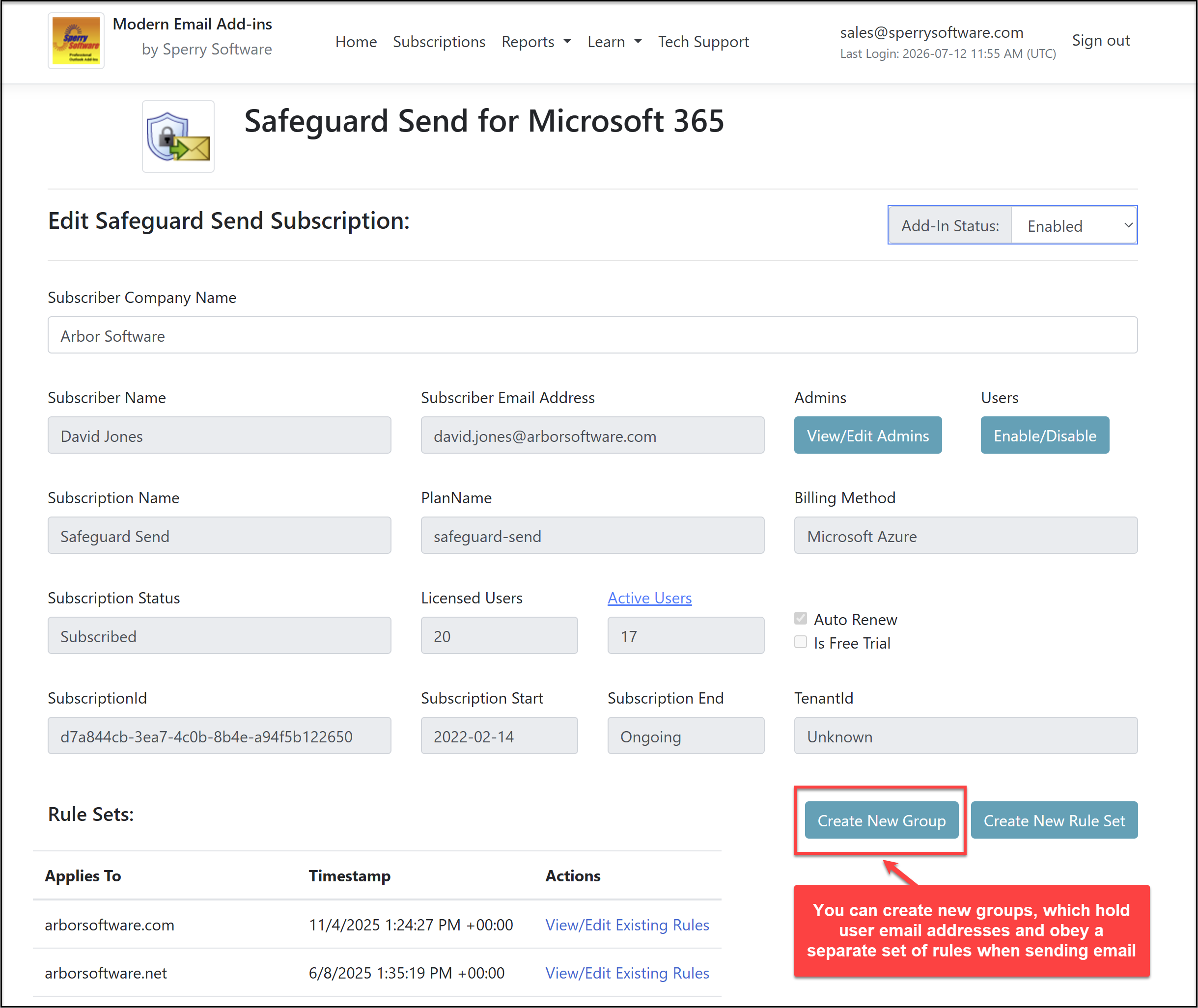
New Groups begin with a copy of your existing domain-level rules. This gives administrators a useful starting point: preserve the organization’s standard safeguards, then adjust only the rules that need to be different for that team.
For the detailed setup steps, open the Groups setup and membership guide. Review its instructions for creating a group, adding members, and understanding which rule set applies.
In the dashboard, Groups appear with an identifier such as group:[email protected]. This is the normal internal format used to identify the Group. Clicking on the group:[email protected] (or any similar group name) brings up the Group Edit page to again adjust the members in the group.
Add members your way
Groups are designed to work whether you are assigning a handful of people or an entire department.
You can add members by:
-
Searching for and adding one user at a time
-
Pasting email addresses into the Add New Users box
-
Separating addresses with line breaks, commas, or semicolons
-
Importing a
.csvor.txtfile with one email address per line
You can also use Export CSV to download the current Group membership list for documentation, review, or future updates.
Keep protection aligned with risk
Imagine David, the IT Manager at Arbor Software, needs to apply a stronger policy to the Finance team.
He creates a Finance Group, which starts with Arbor’s normal domain-level rules. He then edits the Group’s rules to require confirmation of every external recipient, adds the 3 Finance users, and saves the Group:
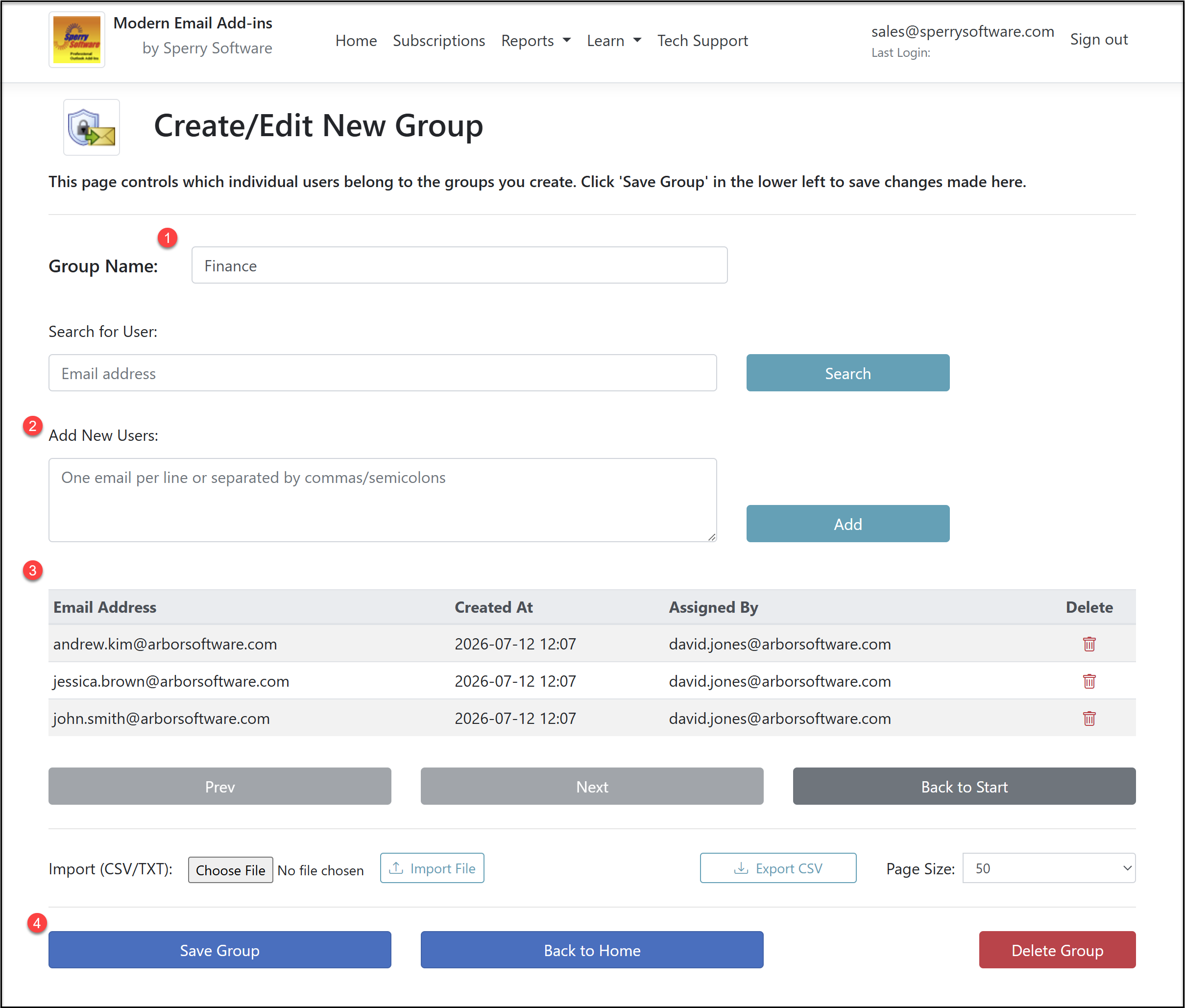
From that point forward, Finance users see the stricter confirmation prompt whenever they send external email. Everyone outside the Finance Group continues working under Arbor’s standard domain-level safeguards.
Anytime that David wants to go back and edit group membership, he can click on the “group:[email protected]” link. He can of course also click on the View/Edit Rules (on the right in the image below) in order to change the rules for the entire group:
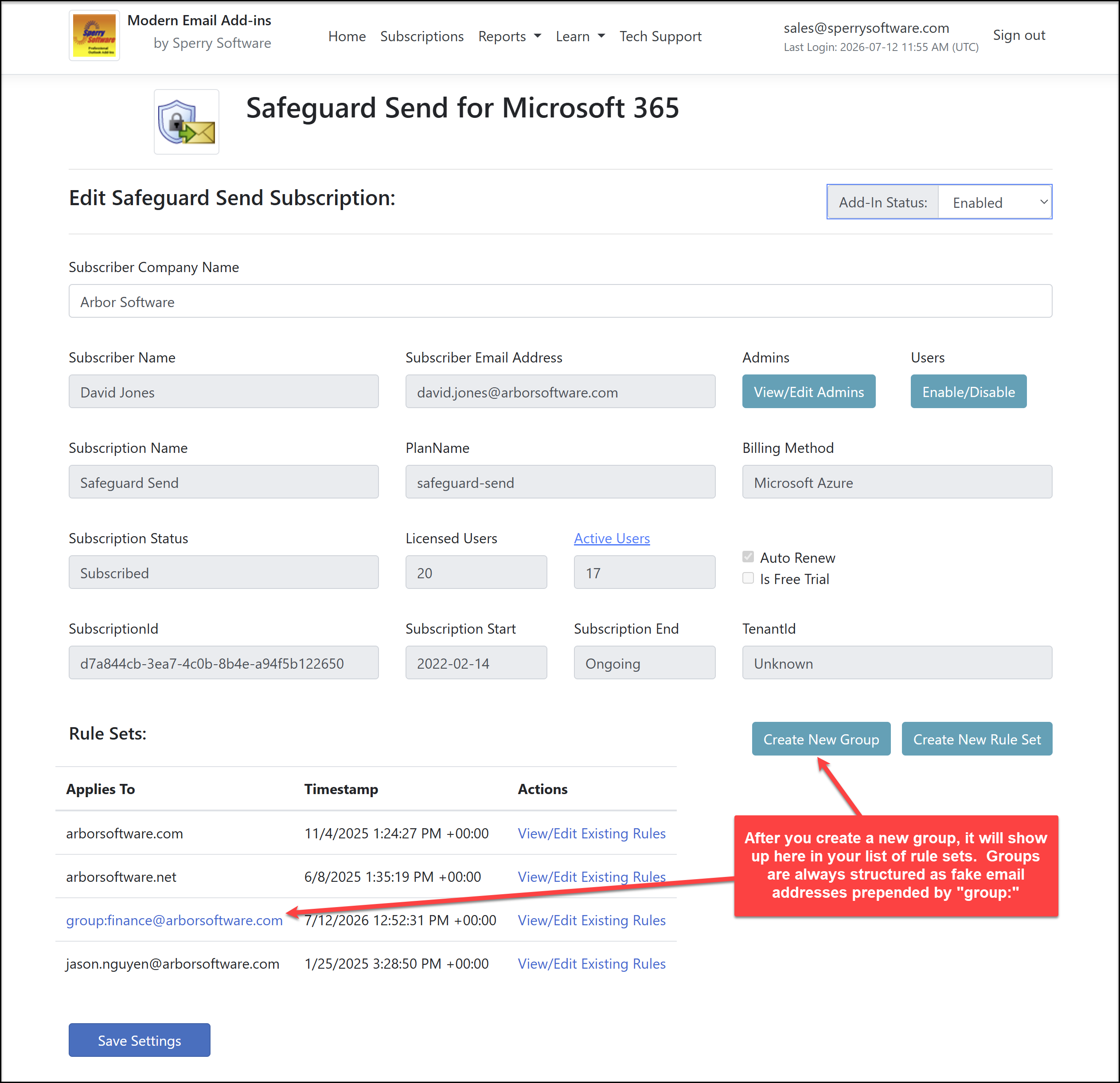
That is the practical value of Groups: the right warning for the right employee at the right time.
Update Groups without redeploying
Group membership and rule changes take effect when users next click Send in Outlook. There is no need to reinstall or update the add-in for each affected employee.
Administrators can return to the Dashboard at any time to:
-
Add or remove Group members
-
Update the Group’s warning rules
-
Export the member list
-
Page through larger membership lists
-
Delete a Group when it is no longer needed
When you remove a user from a Group, that user automatically falls back to the company’s domain-level rule set, unless they have an individual rule set configured.
Plan before you create
A few design choices are worth considering before creating Groups:
-
A user may belong to only one Group.
-
Group names cannot be renamed after creation.
-
To change a Group name, create a new Group and move the members.
-
Deleting a Group also deletes its Group-level rule set.
-
Before deleting a Group, export the membership list and copy any rules you may want to reuse.
Groups make it easier to create policies around how your organization actually works—without forcing every department into the same email workflow.
Start protecting YOUR team appropriately
Whether you need tighter controls for Finance, Legal, HR, executive leadership, or any other high-risk team, Groups give you a straightforward way to apply tailored Safeguard Send rules from one centralized dashboard.
Safeguard Send for Microsoft 365 is built to help users pause and verify potentially risky email before it leaves the organization, including messages sent outside the company or messages matching configurable conditions. With Groups, administrators can now make those protections more relevant to each team’s responsibilities.

Related Posts