
When an email goes wrong, the first thing most people try is to recall an email in Outlook. It feels like an undo button. For the mistakes that cause the most damage – a bulk email that exposes a list, or a file sent to people outside the company – it is usually not one.
September 2026 showed this more than once. In two of the email mistakes reported last month, the sender tried to recall the message after the damage was already done.
Three September email mistakes, one pattern
A hospital invitation sent with every address visible. On September 18, the National Cancer Centre Singapore sent an event invitation to 467 recipients, all connected to a hereditary cancer syndrome. According to Mothership, recipients were put in the CC field instead of BCC, so everyone could see everyone else’s name and email address. The centre tried to recall the email about two and a half hours later, then asked recipients to delete it. The incident was reported to Singapore’s Personal Data Protection Commission, which is investigating.
An internal deal list sent outside the firm. A Morgan Stanley employee mistakenly emailed an internal document listing dozens of Asia investment banking deals to outsiders, and later tried to recall it, according to a Bloomberg report summarized by The News.
A bulk email script that nobody checked. On September 30, Bloomberg reported that Singapore had received its first AI-related data breach notification. An employee at a food company used a generative AI tool to build a program for sending bulk email, but did not tell it to hide each recipient’s address. Customers’ addresses were exposed to one another.
Different organizations, different tools, the same problem: the review happened after Send, when it was too late to help.
What happens when you recall an email in Outlook
Microsoft is clear about the limits. According to its guide to recalling an email in Outlook, recall only works when:
- Both you and the recipient have Microsoft 365 work or school accounts in the same organization.
- The recipient has not opened the message yet.
Personal accounts such as Gmail and Outlook.com cannot use recall. That rules out almost every scenario above. An invitation to hundreds of patients and families goes to outside addresses. A deal list sent to people at other firms goes outside the organization. Even inside your own company, a widely sent message will be opened by someone within seconds.
So recall is useful for one narrow case: an internal email you caught right away. For bulk or external mail, treat recall as a cleanup attempt, not a safety net.
The undo options are short
Outlook does have built-in ways to buy time, and they are worth turning on:
- New Outlook: Undo send lets you cancel for up to 10 seconds after clicking Send (Settings, then Mail, then Compose and reply). See Microsoft’s new Outlook tips.
- Classic Outlook: A rule can hold all outgoing mail in the Outbox for up to two hours, using the “defer delivery by a number of minutes” action. Microsoft explains the steps in Delay or schedule sending email messages.
A one or two minute delay catches the “I just noticed” moment. It does not help when nobody looks at the recipient list or the attachment at all, which is what happened in each case above.
Move the review to before Send
The useful lesson is not “be more careful.” It is that bulk and external sends need a review step built into the process, so checking is the default rather than something people have to remember.
- Decide whether the list itself is private. A list of patients, customers, or applicants carries information just by existing. If recipients should not learn who else is on it, CC is never the right field, and BCC only works if someone checks every time.
- Send one message per recipient for private lists. If each person gets their own email with only their address in the To field, there is no list to expose, even if someone gets the fields wrong.
- Review generated messages before they leave. Look at real outgoing copies, not just the template: the To line, the subject, and any attachment.
- Do not trust homemade bulk-send scripts without a test. Whether the code came from an AI tool or a colleague, send it to two or three internal test addresses first and check what each recipient can see.
- Turn on a short send delay as a backstop. It will not catch everything, but it is free.
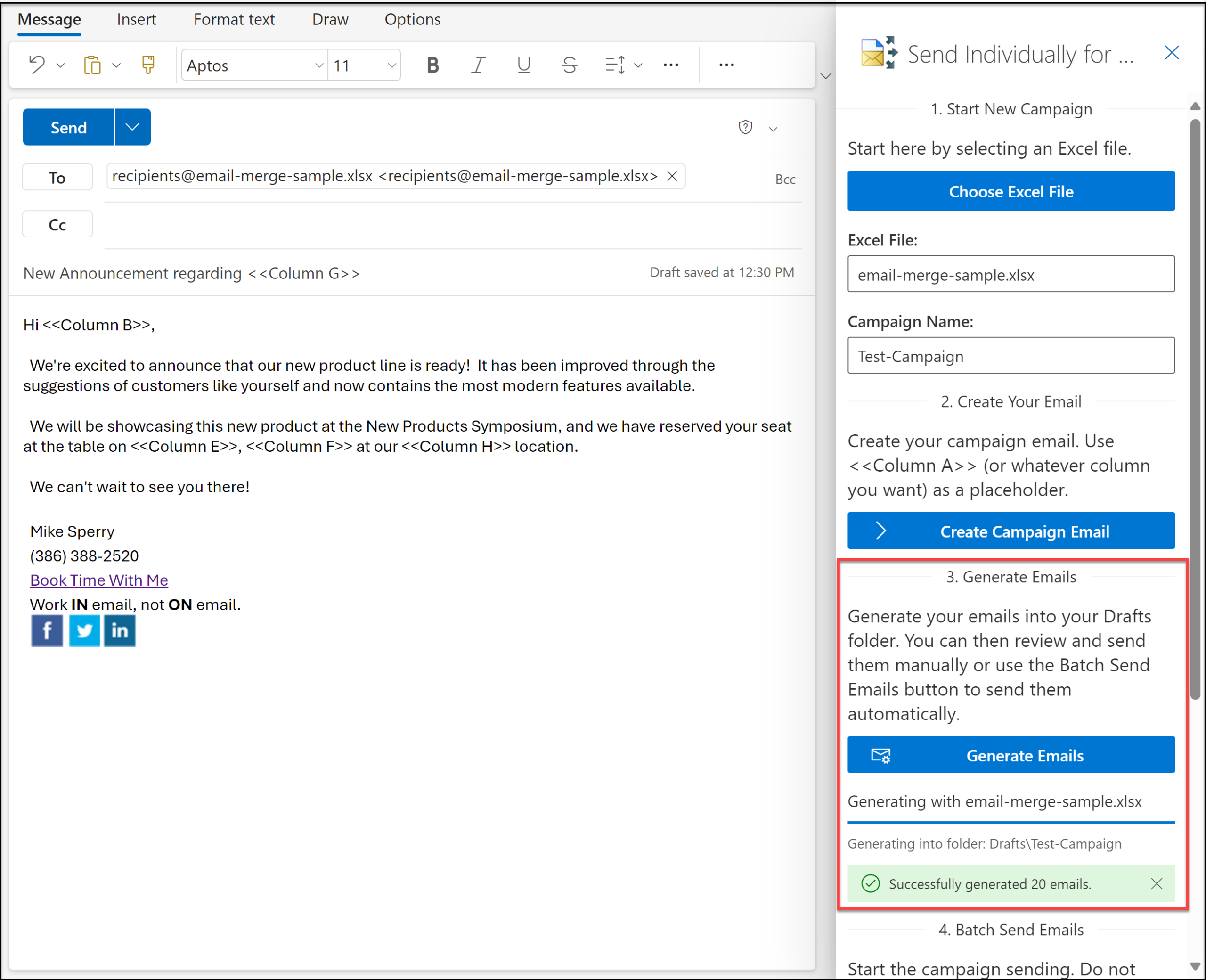
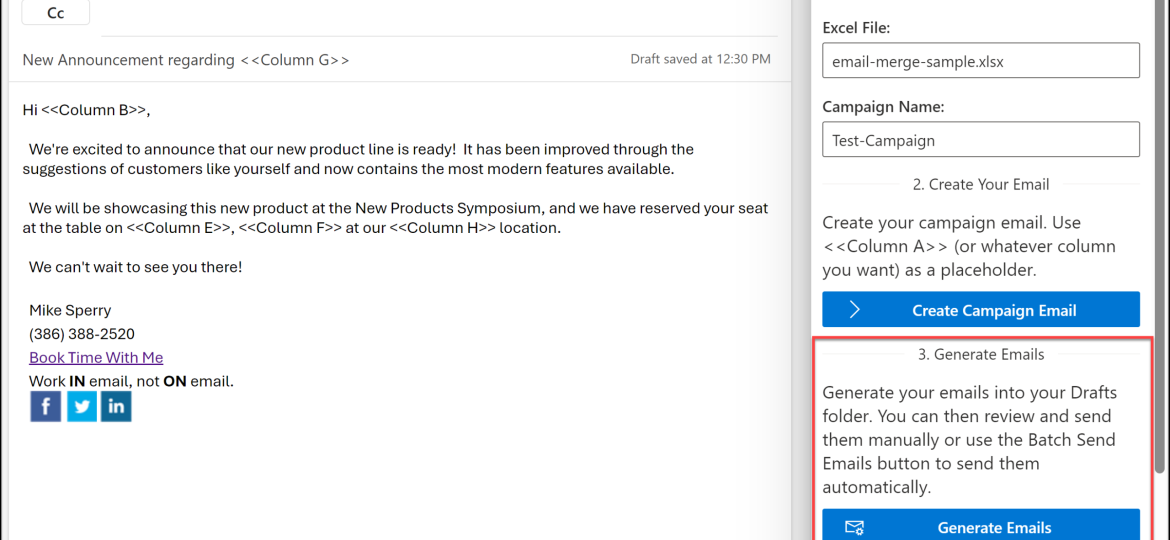
Send Individually for Microsoft 365 generates each personalized email into a Drafts folder, so you can review real copies before anything is sent.
Where Send Individually fits
Steps 2 and 3 are exactly what Send Individually for Microsoft 365 is built for. You pick an Excel file of recipients, write one campaign email with placeholders like a first name, and the add-in generates a separate, personalized message for each person into a Drafts folder. Each recipient sees only their own address. Nothing goes out until you have reviewed the drafts and chosen to send them, either one by one or as a batch.
That Drafts step is the review window recall cannot give you. If the subject is wrong, a column did not merge, or the wrong list was loaded, you see it in the drafts and fix it while it is still a draft.
It runs in desktop Outlook and Outlook on the web, sends from your own mailbox, and does not use outside mailing servers for your list. If your team uses classic desktop Outlook and wants a toolbar button for one-by-one delivery, the original Send Individually add-in works there too. For more on choosing between CC, BCC, and individual delivery, see what the Met Police email breach teaches about group email privacy.
The takeaway
Recall an email in Outlook when you can, but do not plan around it. For bulk and external mail, the only review that reliably works is the one that happens before Send.

Related Posts