
When an organization has a misdirected email incident, the follow-up usually includes a promise to “add safeguards.” Then someone in IT gets asked to approve a tool that checks outgoing email. That is where Outlook add-in security matters: a tool that looks at every message before it leaves is a tool you need to trust.
This post gives IT and security teams six questions to ask any outgoing email warning add-in, and how Safeguard Send for Microsoft 365 answers each one, so you can check the answers yourself.
Why “add safeguards” lands on IT’s desk
Two recent public reports show how this plays out.
In Ireland, records released under Freedom of Information show that Fiosrú, the police oversight body, logged 38 data breaches over about a year and a half. According to The Irish Times, one email with two attachments containing a person’s name, address, age, gender and details of allegations went to the wrong person and was rated high risk. Another email meant for Fiosrú’s own data protection unit went to the data protection office at Dublin Bus instead.
In Singapore, the National Youth Council sent a file with the names and national ID numbers of about 600 youth forum participants to a private email address in August. The Straits Times reports that the council could not reach the recipient to confirm deletion, and that it is now reviewing its data transfer processes and adding safeguards.
Neither organization was careless about privacy. One of these emails was even meant for a data protection unit. The mistake happened at the moment of sending, which is exactly where a send-time check sits. The next question is whether that check is safe to deploy.
Six Outlook add-in security questions to ask before you approve
1. Where is the email actually checked?
Some tools route mail through an outside service to inspect it. That adds a new place where message content can live. Ask the vendor directly whether message bodies, recipients or attachments leave your tenant.
Safeguard Send’s answer: the rules are fetched to the Outlook client and evaluated there when the user clicks Send. According to the Safeguard Send FAQ, emails, recipients and attachments are not sent to Sperry Software’s servers.
2. What does the vendor keep?
“We don’t see your email” is not the same as “we keep nothing.” Ask what is stored and why.
Safeguard Send’s answer: your rules are stored on Sperry Software’s servers and read by the add-in at send time, and the product page says it sends usage information to its cloud servers to learn which features are used, spot widespread problems and help with support, and uses the user’s email address to allow continued access. The FAQ also notes that unsubscribing deletes your information immediately. Read the linked privacy policy and terms as part of your review.
3. Who controls deployment, and who is covered?
A tool that users install themselves is hard to govern. Look for central deployment and a way to target specific people.
Safeguard Send’s answer: an admin deploys it from the Microsoft 365 admin center under Integrated apps and assigns it to everyone, specific users or groups, or just themselves. The deployment guide walks through each step. Safeguard Send for Microsoft 365 also has Allowed/Blocked Users, which turns the add-in on or off for a single person right away instead of waiting for Microsoft’s normal propagation delay.
One thing to check during review: if a user signed up on their own before the company subscription, their personal rules take priority over the domain rules. The FAQ explains how to spot this by comparing subscription IDs.
4. What happens when the service cannot be reached?
This is the question most reviews skip. If the add-in cannot get its rules, does Outlook send the email anyway or hold it?
Safeguard Send’s answer: the two editions are built differently on purpose. Safeguard Send for Microsoft 365 is designed to block sending if its server cannot be reached, which suits high-security environments. Safeguard Send Core is designed to let the email go through. The deployment best practices guide explains how to change the default. Make this a deliberate choice and write it down.
5. How are updates handled?
An add-in that changes on its own can change user behavior without warning. Ask whether new versions are pushed automatically.
Safeguard Send’s answer: new versions are not pushed automatically. You choose when to upgrade, and release notes describe what changed.
6. Can you prove it works before rollout?
Approval is easier with evidence from your own tenant.
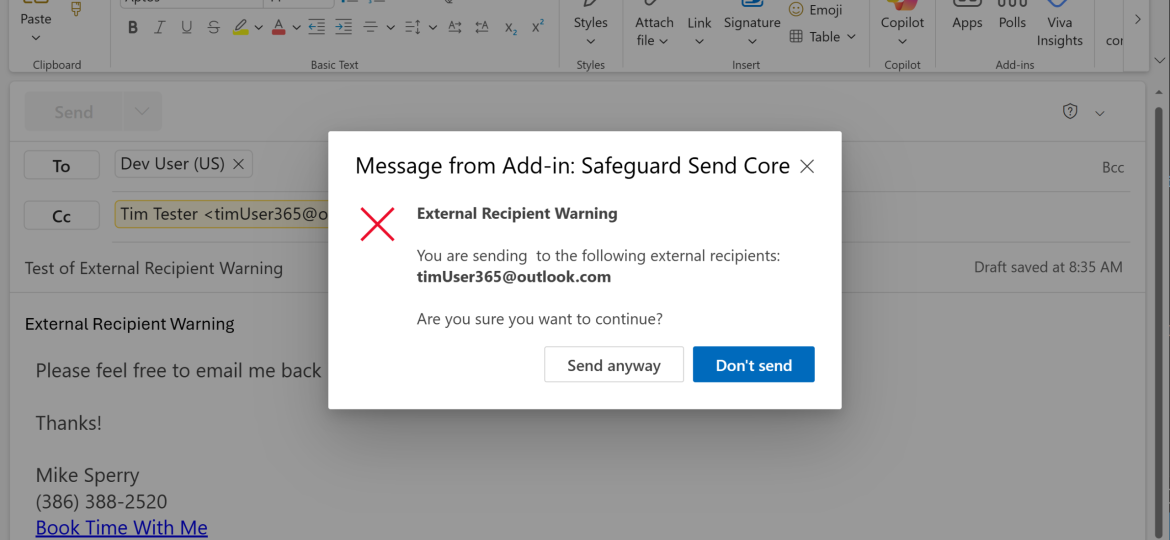
Safeguard Send’s answer: there is a 30-day free trial, and the best practices guide recommends three phases: a small pilot team, then a department or branch, then everyone. During the pilot, send test emails to an outside address, confirm the warning shows the actual recipient addresses rather than display names, and check how other add-ins and macros behave on send.
Buying and billing through Microsoft
For many organizations, procurement is its own approval step. Safeguard Send is listed on Microsoft Marketplace, so it can be bought and billed through your existing Microsoft account, and Sperry Software is a Microsoft Partner. Direct invoicing is also available if your process needs a quote and purchase order. The version comparison shows which features are in each edition.
What this does not replace
A send-time warning helps the person sending notice the wrong recipient or attachment. It does not replace data loss prevention policies, encryption or training, and it only works when the user reads the warning. Its strength is that it acts at the one moment the mistakes above actually happened.
Next step
If you are building the case for internal approval, start with a pilot group and the six questions above.

Related Posts