
Two weeks ago, the Metropolitan Police accidentally sent an email to 143 of Mohamed Fayed’s alleged victims with every recipient visible in the To/CC line. The force has self-referred to the ICO and is facing a potentially large fine. It’s the same mistake that shows up over and over: misdirected email is still the single largest breach category reported to the UK ICO, and Verizon finds the human element in 62% of confirmed breaches.
That’s why a useful outbound-email safeguard has to do more than ask, “Are you sure?” – it should help the sender verify the actual address before the message leaves Microsoft 365.
Why display names create a blind spot
Outlook’s autocomplete is built for speed. As you type, it offers contacts that appear to match. Selecting a suggestion is convenient, but the visible display name can hide the detail that matters most: the underlying email address.
Consider a legal, healthcare, insurance, or finance team preparing an external message. “Jordan Lee” may be a client, a former client, an internal colleague, or a personal Gmail address. The message can look correct at a glance while the destination is wrong.
The risk is not limited to a single recipient. A reply-all can preserve outside contacts from an earlier thread. An attachment can be appropriate for one person but inappropriate for another. A quick visual check of names does not reliably surface those differences.
Make the address – not the name – the decision point
A stronger workflow makes the underlying address visible when a message needs extra scrutiny. The sender can then answer concrete questions:
- Is this the intended person, not just the intended display name?
- Is the address inside or outside the organization?
- Does the recipient belong to the domain or client group expected for this message?
- Did a reply-all or autocomplete suggestion add someone unintentionally?
This is a small change in the send experience, but it turns a vague warning into a useful review. The goal is not to slow every email. It is to add a deliberate checkpoint when the destination or content creates meaningful risk.
Use rules to apply the checkpoint consistently
For IT administrators, the practical question is not whether employees should be careful. It is how to make the right check happen consistently without relying on memory or training alone.
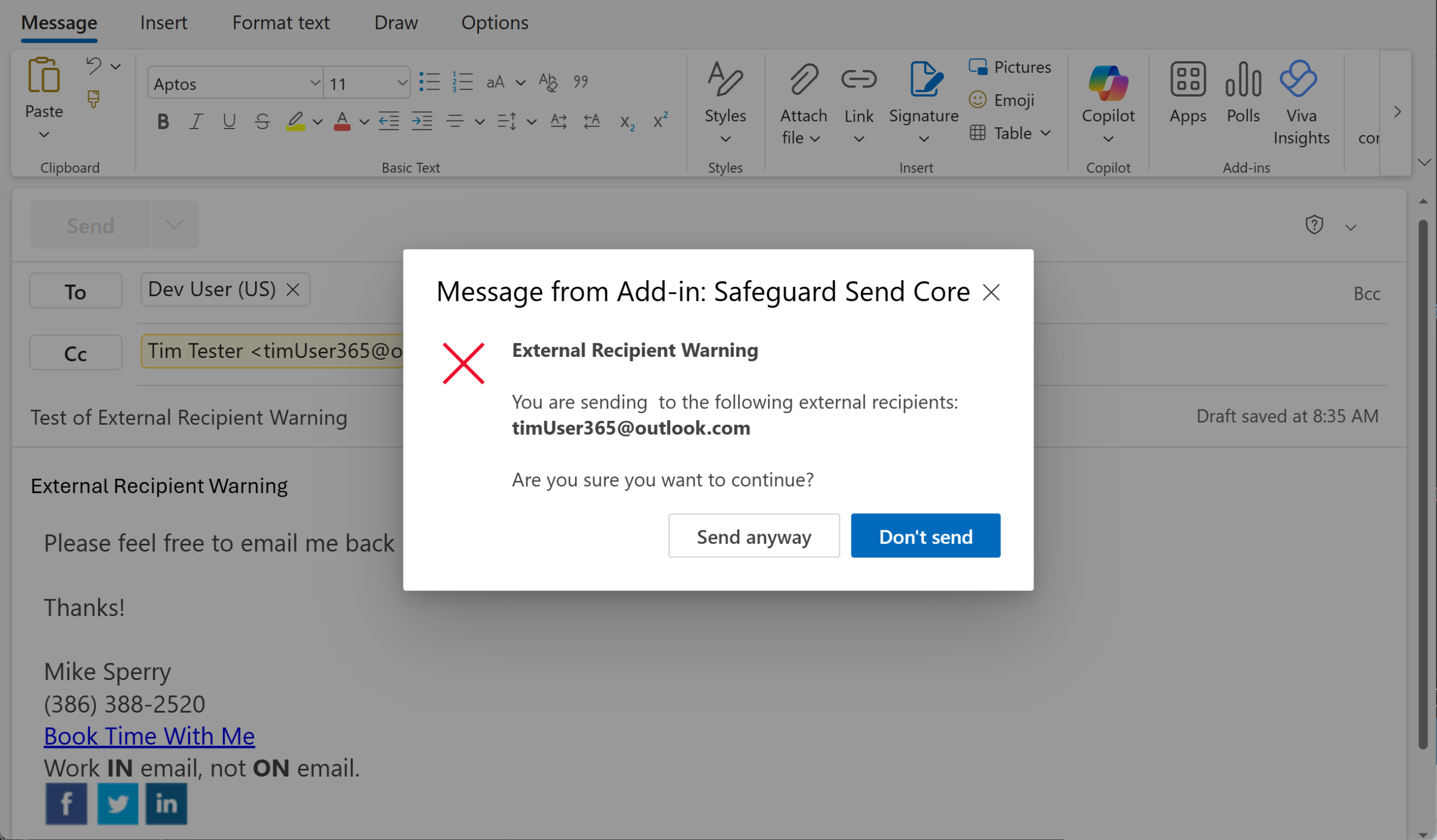
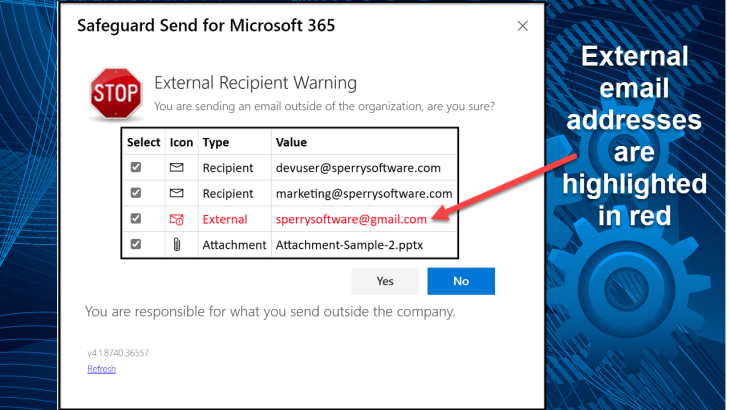
Safeguard Send for Microsoft 365 checks outgoing email before it is sent. Administrators can configure a rule to warn when a message goes outside the company, and the warning prompt can show recipients’ actual email addresses rather than only their display names. Rules can also respond to conditions such as specific recipients or domains, too many recipients, multiple external domains, attachments, keywords, or sensitive information.
That lets an organization set a sensible baseline and add stronger controls where the consequences of a mistake are higher. For example, an administrator might require a review for every external message, then use additional rules for restricted domains or messages containing configured sensitive terms.
Give users a useful second chance
A warning is most helpful when it tells the sender what needs attention. Instead of a generic “Are you sure?” prompt, the user should be able to confirm each recipient and see the recipient address and the condition that triggered the review.
From there, the sender can remove an unintended recipient, correct the address, review an attachment, or confirm that the message is ready. If a message must not leave the organization – or must meet a defined requirement first – the administrator can configure the rule to prevent sending until the issue is corrected.
This approach treats the user as part of the control, not as the problem. The system catches a risky moment, explains why it matters, and gives the sender a chance to fix it before delivery.
A practical rollout for Microsoft 365 administrators
- Start with the highest-value checkpoint. Begin with a rule that warns on external recipients so users learn to verify addresses before sending outside the organization.
- Explain what users will see. Tell employees that the prompt is designed to show the actual destination, not merely repeat the display name.
- Add targeted rules. Extend the review to restricted domains, large recipient lists, multiple external domains, sensitive keywords, or attachment conditions that match your policies.
- Decide where blocking is appropriate. Use a warning when users need judgment; prevent sending when a defined requirement must be met first.
- Review the workflow. Test common scenarios, including autocomplete selections, reply-all, external clients, and messages with attachments.
Make the final check specific
People will always make mistakes when a workflow hides the detail they need to verify. Display names are useful for recognition, but the underlying email address is what determines where a message goes.
Safeguard Send for Microsoft 365 gives administrators a way to add that distinction to Outlook’s send process, with configurable rules and warning prompts before risky messages leave the organization.
Learn more about Safeguard Send for Microsoft 365 and start a trial.

Related Posts