
Guernsey’s data protection authority recently published a short case study that every compliance team should read. An employee emailed a customer about their finances and health. The sensitive details were in the body of the message, unencrypted. One letter was missing from the address, and that email sent to the wrong address reached someone who happened to be an acquaintance of the customer (ODPA).
The customer only found out because the acquaintance forwarded the email to them. A request to delete it went unanswered. This is the classic misdirected email: no attacker, no malware, just one keystroke.
The regulator’s learning points are sensible: encrypt personal data and train staff regularly. But it is worth being precise about what encryption would have changed here, because the answer is “less than you might think.”
Why encryption does not stop an email sent to the wrong address
Email encryption protects a message from people who intercept it or who should not have access to the mailbox it was sent to. It does not check whether you typed the right mailbox.
With Microsoft Purview Message Encryption, for example, a recipient opens the message by signing in with their account or by requesting a one-time passcode sent to their email address (Microsoft Learn). Microsoft describes these steps as a way to “validate your identity and make sure that you are the intended recipient” (Microsoft Support).
That validation proves the reader controls the address on the email. If the address is wrong by one letter, the person who owns that wrong address passes the check. The encryption works exactly as designed – it simply delivers the protected message to the wrong person.
In other words, encryption answers “can anyone else read this?” It does not answer “is this the right person?” Only the sender can answer that, and only before clicking Send.
The problem with a warning on every external email
The obvious fix is a prompt whenever an email leaves the company. That is the most popular Safeguard Send rule, and for many firms it is the right starting point.
But think about the employee in this case. Emailing customers is their job. If every customer email triggers the same prompt, the prompt becomes part of the click path. People learn where the Yes button is. The warning that fires on the dangerous email looks exactly like the warning on the dozens of routine emails before it.
The scale of the problem is not small. According to a Bridewell analysis of ICO data, data emailed to the wrong recipient was the leading cause of human-error breaches reported in the UK, rising to 2,459 reports in 2025 (Intelligent CISO).
A rule that fires when the content is sensitive
Safeguard Send for Microsoft 365 lets you add a second, more specific rule alongside your general external warning. Instead of reacting to every outside recipient, it reacts to what is in the message.
The product page lists conditions that act on PII such as credit card numbers, Social Security numbers, driver’s license numbers and bank account numbers, and on your own keywords in the subject, body or attachments (Safeguard Send for Microsoft 365). You can combine conditions, so the rule fires only when sensitive content is going outside the company (Getting Started guide).
What the user sees
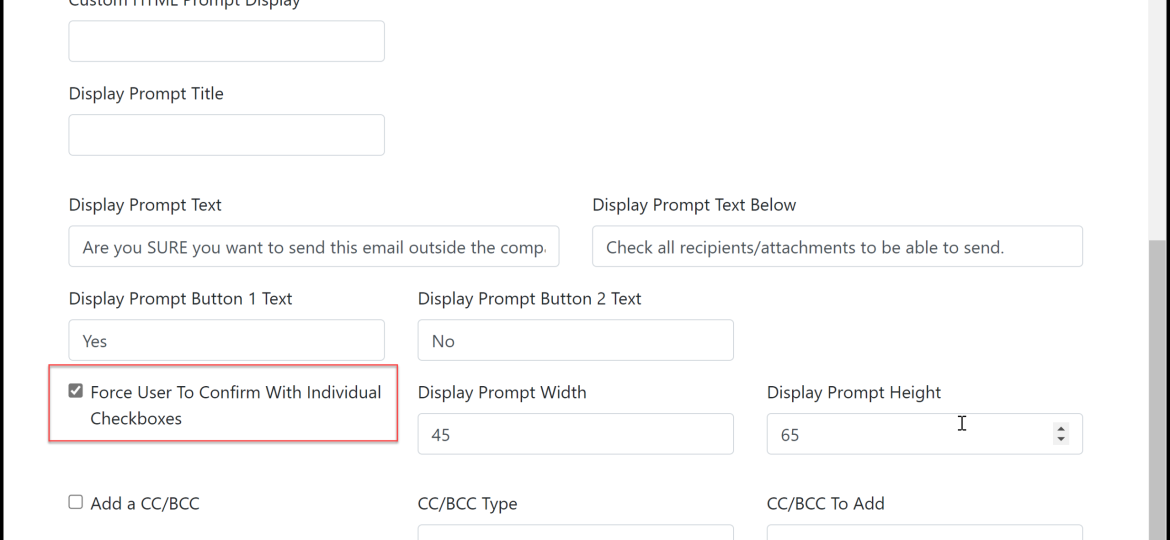
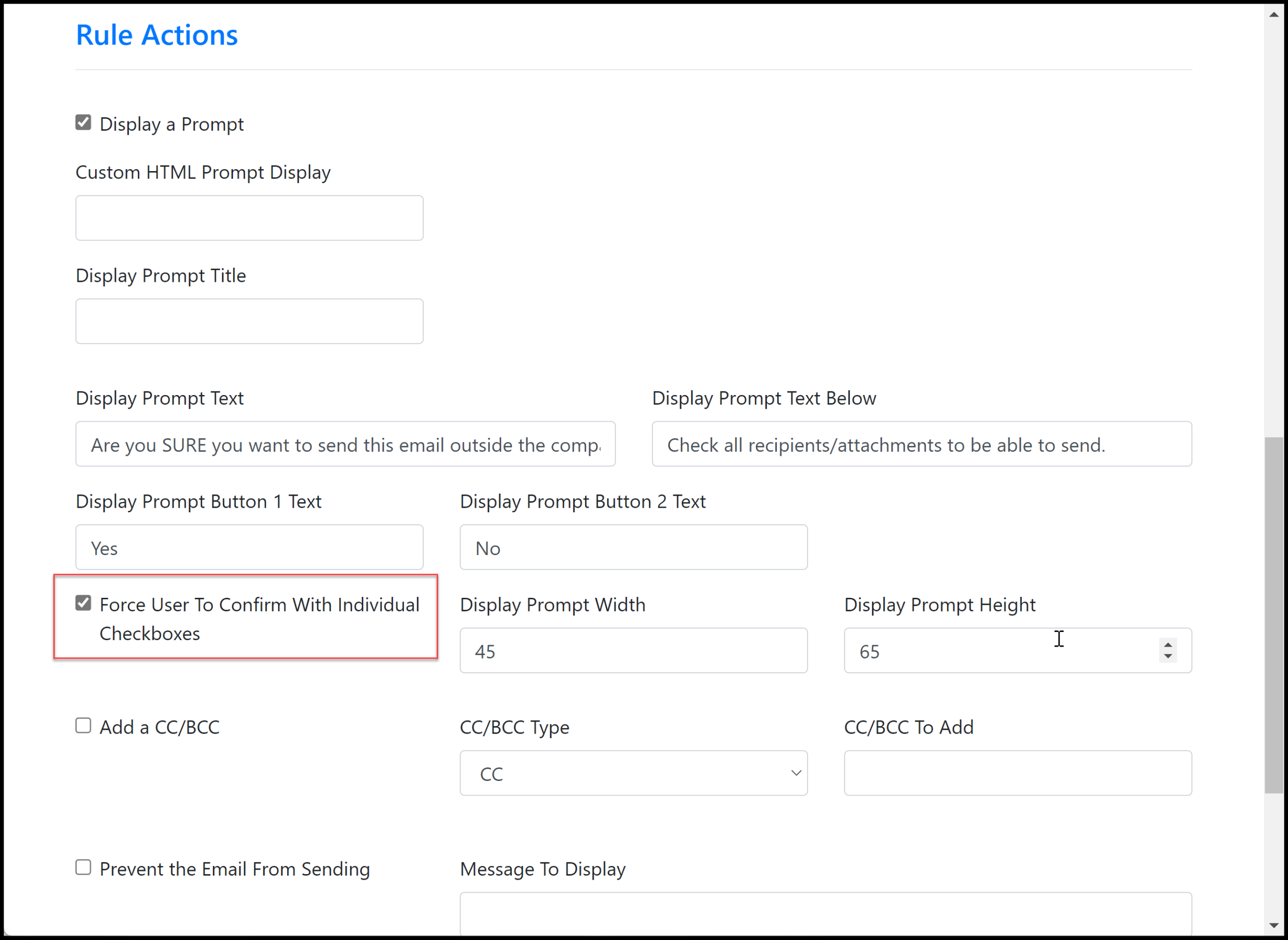
When the rule matches, the prompt shows each recipient’s actual email address, not just the display name, and external recipients are highlighted. You control the prompt text, so this rule can say something different from your everyday warning, for example:
- “This email contains account or health details. Read the address letter by letter before sending.”
- “Is this the customer’s current address on file? If you typed it by hand, check it against the record.”
Because this prompt appears rarely, it gets read. That is the whole point: a different message, at a different moment, for a different level of risk.
Options for higher-risk teams
- Stop the send. A rule can prevent the email from being sent until the problem is fixed – useful for data that should never go by plain email, such as full card numbers (Creating or Editing a Rule).
- Watch known lookalike addresses. The “send to specific email addresses” condition can warn about an address your staff are known to mistype, so the near-miss gets flagged by name.
- Remind users to encrypt. If your encryption service relies on a subject keyword, a rule can prompt when that keyword is missing on an external email (Email Encryption and Safeguard Send).
For teams that need a deliberate check on every recipient, you can also require a checkbox next to each address. We covered when that is worth the extra click in Right Recipients, Wrong Attachment.
How the two controls fit together
Encryption and a send-time address check solve different halves of the problem:
- Encryption protects the content once the email is on its way.
- The send-time check gives the sender one focused look at the destination before it leaves.
A practical setup for a team that emails customers about money or health:
- Keep your general external warning as the baseline.
- Add a sensitive-content rule for external email, with prompt text that tells users exactly what to check.
- Pilot it with one team using Groups before rolling it out.
- Keep encrypting sensitive messages – and treat that as protection for the right recipient, not a check on the address.
What this does not do
Safeguard Send cannot know that “jsmith” should have been “jsmyth.” It does not guess intent. What it does is stop the send for a moment, put the exact address in front of the person who knows the customer, and say why this email deserves a second look. If the user clicks Yes without reading, the email still goes. That is why the prompt for sensitive content should be rare and specific.
It also does not replace encryption, data loss prevention policies or training. It covers the one moment those controls leave to the sender. Rule limits differ between editions, so see the version differences page if you are comparing Safeguard Send Core.
One missing letter cost a customer their privacy, and no encryption policy could have caught it. A two-second look at the address could have. Prevent Mistakes When Sending Email with a free 30-day trial of Safeguard Send for Microsoft 365.

Related Posts