

A new computer usually arrives on a busy day. The old one is slow or failing, the new one is unboxed, and everything needs to work by tomorrow morning. Email comes over with your Microsoft account, but when you move Outlook add-ins to a new computer, they need a few extra steps.
Several recent support tickets started the same way: “New laptop – the add-in needs to be activated again.” The fix is rarely hard. But three things do not move on their own, and knowing them ahead of time turns a stressful afternoon into a 15-minute task.
This checklist covers how to move Outlook add-ins to a new computer, using Sperry Software’s classic desktop add-ins (Auto Print, Save As PDF, Send Individually, Power Rules Manager and the rest) as the example.
Why Outlook add-ins do not follow you to a new computer
Your mailbox lives on the server, so it reappears as soon as you sign in. Classic desktop add-ins are different. They are installed on the Windows computer itself, and three pieces stay behind with the old machine:
- The installation. The add-in has to be downloaded and installed again on the new computer.
- The activation. Your order number activates the add-in on a specific computer. Our update guide notes that you do not need your order number again on the same machine – which also means a new machine will ask for it.
- Your rules and settings. If you use a rule-based add-in, a fresh install on a new computer starts without your rules unless you bring a backup.
There is also a fourth surprise that has nothing to do with the add-in: the version of Outlook on the new computer. More on that in step 4.
Before you move Outlook add-ins to a new computer
1. Write down which add-ins and versions you have
Open Outlook on the old computer, go to the Sperry Software tab, open the configuration window, and click About. The Versions list shows every Sperry add-in installed and its version number. Take a screenshot.
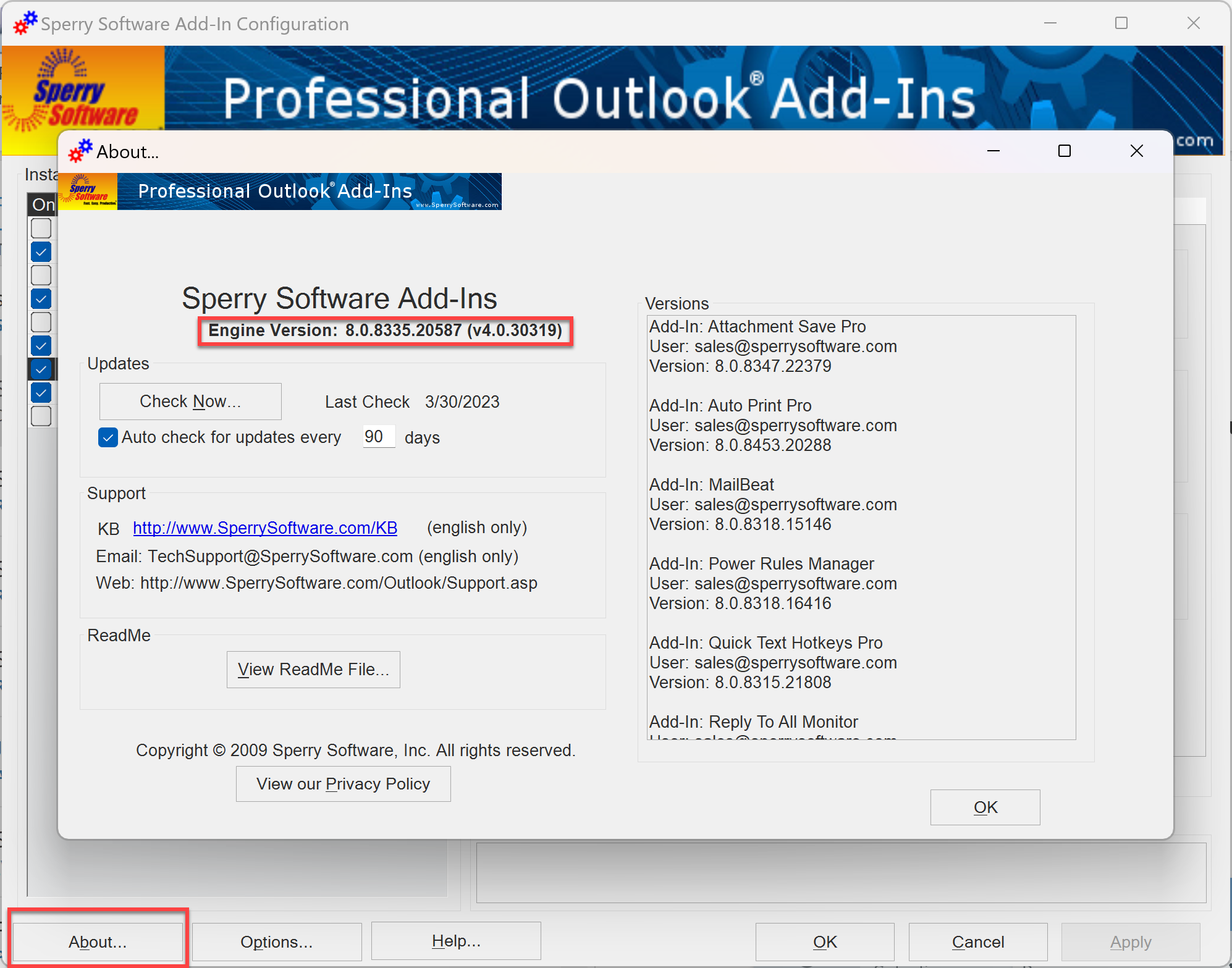
This matters more than it sounds. People often remember “the printing add-in” but not whether it was Auto Print or Auto Print Pro, and those are separate products with separate downloads.
2. Find your order number
The order number is what activates the add-in. It is in the download and installation email sent when you purchased. If you cannot find it, you have two options from our support page:
- Sign into your account to see your order number and download links.
- Request that the order email be resent. It goes automatically to the email address on record, so check the inbox you used at purchase.
If someone else bought the add-in for you, such as a manager or an office administrator, the order email went to them. Ask them first.
3. Back up your rules
If your add-in uses rules – Auto Print Pro, Power Rules Manager and other “Pro” add-ins, for example – open its configuration window and use the Backup option to save your rules to a file. Put the file somewhere the new computer can reach, such as OneDrive or a USB drive.
In version 8.2, Power Rules Manager backs up to both a readable XML file and a native Outlook RWZ file, and restore accepts either one, according to the version 8.2 announcement.
Rebuilding a set of print or save rules from memory is where most of the lost time goes. A 30-second backup avoids it.
On the new computer
4. Make sure you are running classic Outlook
This is the step most people miss. Microsoft says Windows 11 builds later than 23H2 come with the new Outlook app preinstalled (Microsoft Learn). The new Outlook for Windows does not support COM add-ins, which is the technology classic desktop add-ins use. They still work in classic Outlook (Microsoft Learn).
So if you install an add-in and it never appears, check which Outlook you opened. In classic Outlook, File then Office Account shows the screen below. New Outlook has no File menu like this.
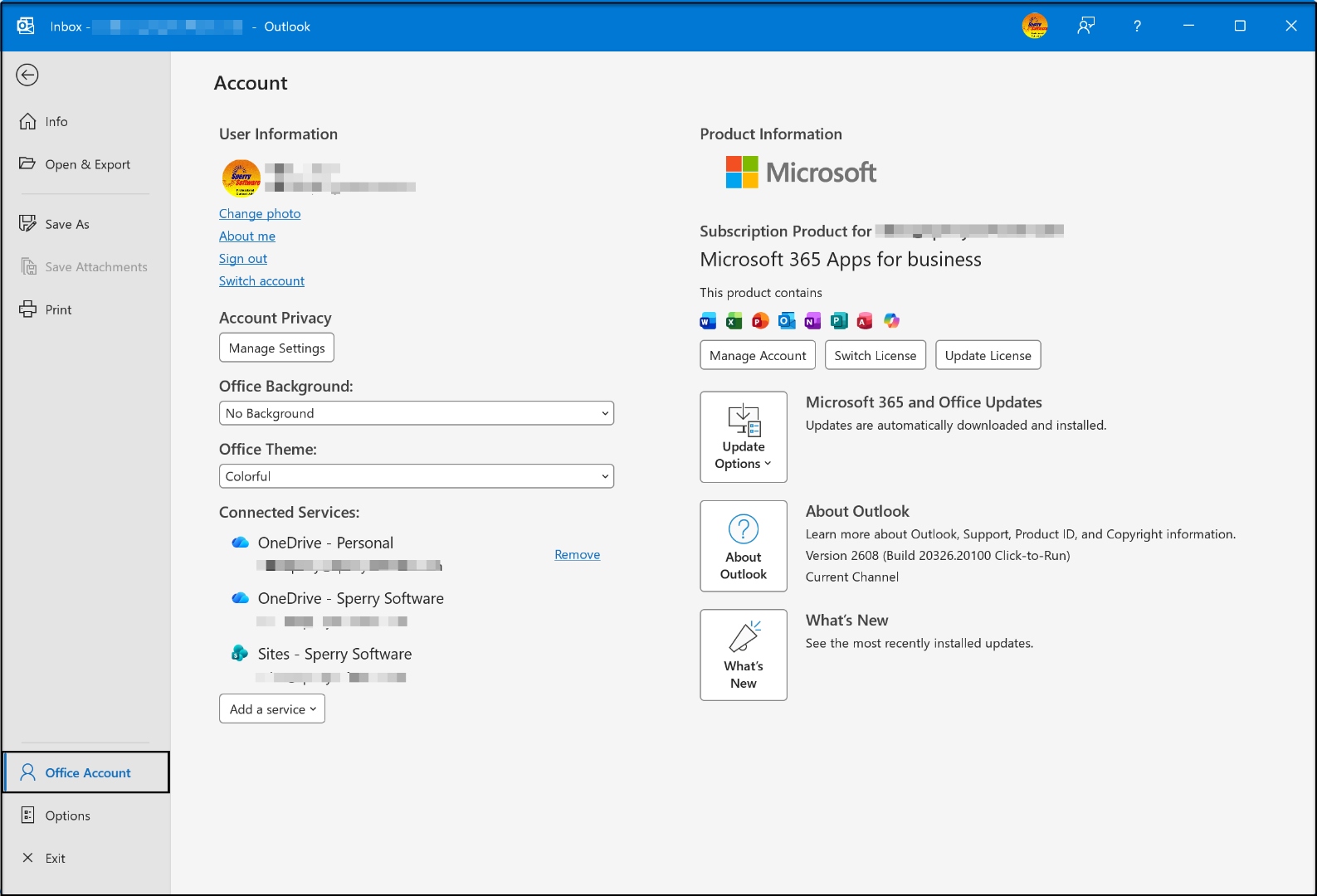
In the Windows Start menu, classic Outlook is listed as Outlook (classic). If it is not there, Microsoft explains how to install classic Outlook on a Windows PC. If you are in new Outlook, the toggle in the top-right corner lets you switch back.
5. Download the current version, not an old installer
Do not reuse an installer you saved years ago. Download a fresh copy from our add-in downloads page or from the links in your account. Version 8.2 is the current release, and it adds support for Outlook 2024 alongside Microsoft 365, Outlook 2021, 2019 and 2016.
Close Outlook, run the installer, then start Outlook again. If you have several add-ins, install them one at a time.
6. Activate with your order number and restore your rules
When Outlook starts, the add-in opens in trial mode. Click I bought it and enter your order number, as described in our FAQs. Then open the add-in’s configuration window and restore the rules file from step 3.
Finally, test one real email. Print one, save one as PDF, or run one rule, and confirm it does what it did on the old computer.
If activation does not work
There are two common reasons.
The old computer is still counted. According to our FAQs, each license covers two computers for the same user – for example, a desktop at work and a laptop for travel. If the old computer is still holding an activation, contact support with your order number and ask us to reset the activations. This is a routine request.
The purchase is more than two years old. Every purchase includes two years of free support and upgrades. Under our upgrade policy, replacement keys after that period require a repurchase, which previous customers can do at 50% off the current price with their original order number. The add-in may keep working on the old computer after two years – the policy applies when you need new activations, support or upgrades.
Knowing this before the old computer is wiped lets you plan the timing, rather than finding out on the day you need the add-in.
A quick checklist
- Screenshot the About window on the old computer.
- Find or request your order number.
- Back up any rules to OneDrive or a USB drive.
- On the new computer, open classic Outlook, not new Outlook.
- Download the current version, install, and enter your order number.
- Restore your rules and test one email.
Ready to set up the new computer? Download the current version of your Outlook add-in. If you get stuck, open a support ticket with your order number and the add-in name, and we will help you finish the move.

