
Most email safety advice is about who you are sending to. Check the address. Watch out for autocomplete. Think twice before Reply All. That advice is right, but it leaves out a mistake that recipient checks cannot catch: the right people get the wrong file.
On September 17, 2026, Luxembourg’s National Institute of Education (IFEN) had exactly that problem. According to RTL Today, 26 recipients were supposed to receive a form. The email carried the wrong attachment instead: a document with personal data for 1,800 education staff, including names, addresses, email addresses, and employee ID numbers. The recipients were asked to delete the message, affected staff were informed, and the data protection authority was notified.
Nothing about the recipient list was wrong. Only the attachment was. This post covers why a wrong attachment email slips past most controls, and how a per-attachment confirmation step in Outlook makes the sender look at each file before it goes out.
Why a wrong attachment email gets past recipient checks
Most outbound email rules are triggered by recipients: external domains, a specific address, too many people on the To line. Those rules are useful, and IT teams should keep them. But in the IFEN case, every one of them could have passed:
- The recipients were the intended audience, all working in education.
- The recipient count was normal for the task.
- The sender meant to send an attachment, so a “did you forget the attachment?” reminder would not fire.
The failure happened when the file was picked. Someone chose a file from a folder, a recent-files list, or a reused draft, and the wrong one looked close enough. Once it is attached, the rest of the send looks normal.
The filename is the last checkpoint
By the time someone clicks Send, the only clue left is usually the filename. “Registration form.xlsx” and “Staff list.xlsx” can look alike in a busy compose window, especially when the attachment sits in a narrow bar under the subject. Outlook shows the file, but nothing makes the sender actually read its name.
That is the gap a confirmation step fills. It does not need to judge what is inside the file. It needs to put each file name in front of the sender and require a deliberate acknowledgment before the message can leave.
How per-attachment confirmation works in Safeguard Send for Microsoft 365
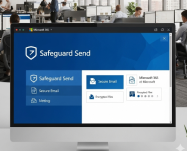
Safeguard Send for Microsoft 365 (SS365) is an Outlook add-in that shows a warning prompt when a message matches a rule your organization defines. The prompt lists the recipients and the attachment names. Admins can turn on an option that adds a checkbox next to each recipient and/or attachment. The Yes (or OK) button stays disabled until every box is checked.
For a wrong attachment email, that changes the moment of sending. Instead of one reflexive click, the sender has to tick each file by name. That is the point where “wait, that is the staff list” is most likely to happen.
The option is set per rule, in the Actions area of the rule in the Safeguard Send dashboard, and it can be enabled or disabled for specific rules or specific users. The step-by-step guide to confirming recipients and attachments walks through turning it on.
Where to apply it without creating prompt fatigue
A confirmation step works best when it is saved for sends that carry real risk. If every email asks for checkboxes, people start clicking through them. A practical rollout:
- Start with external sends that carry files. Pair the confirmation option with a rule that warns when email leaves the company. Internal file sharing can stay quick.
- Target the teams that handle bulk personal data. HR, payroll, admissions, finance, and records teams are the ones most likely to keep a “form” and a “full list” in the same folder. Safeguard Send Groups let you apply stricter rules to those teams without adding prompts for everyone else.
- Use attachment count as a signal. SS365 can warn when a message carries more attachments than a threshold you choose, which catches the “grabbed an extra file” version of the same mistake.
- Test before you roll out. Pilot the rule with a small group first using the guide on how to test your rule changes, then widen it.
What this check does and does not do
It is worth being clear about the limits. Per-attachment confirmation does not open the file and decide whether its contents are appropriate. It makes a person look at each attachment name and confirm it on purpose. If the file is misnamed, or the sender does not read the prompt, a human can still make the mistake.
It also does not replace good data handling. After the IFEN incident, the ministry noted that sending personal data by email is not standard practice. The strongest protection pairs process (share bulk personal data through controlled systems, and keep outbound forms in a separate folder from source data) with a send-time check that catches what slips through.
What the confirmation step adds is a pause at the one moment when the error is still fully reversible: before Send. Once a file reaches 26 inboxes, the best outcome is a polite request to delete it.
A quick admin checklist
- Identify which teams regularly email forms, exports, or reports that contain personal data.
- Create or update an external-send rule for those teams, and enable per-recipient and per-attachment confirmation in its actions.
- Add an attachment-count rule if people often send several files at once.
- Customize the prompt text so it tells users what to check, for example: “Confirm each file name matches what this recipient should receive.”
- Pilot, review feedback, then roll out more widely.
Stop the wrong file before it leaves Outlook
Recipient checks protect you from sending to the wrong people. Attachment confirmation protects you from sending the wrong thing to the right people. Both mistakes are common, and both are much cheaper to stop at the send button than to clean up afterward.
Safeguard Send for Microsoft 365 deploys from Microsoft Admin Center or Azure Marketplace, and works in classic Outlook, new Outlook, Outlook on the web, and Outlook on Mac. You can compare editions and rule limits on the Safeguard Send version differences page, and start with a free trial backed by our 30-day money-back guarantee.

Related Posts