

We are pleased to announce the general availability of version 8.2 of our classic desktop Outlook add-ins. This is a foundational release that keeps our desktop line current with the latest Windows runtime, adds support for the new perpetual Outlook 2024, and delivers real, day-to-day improvements to two of our most-used tools: Power Rules Manager and Timed Email Organizer.
If you’re unsure which Outlook application is open on Windows, identify whether you’re using classic or new Outlook using the guide’s File / Office Account and version-number sections. Check your edition before following the desktop add-in upgrade instructions below.
Full change details, download links, and step-by-step upgrade instructions live on our What’s New page.
Why version 8.2 matters now
Version 8.1 was built on .NET Framework 4.6.2. That runtime reaches Microsoft’s end of support on January 12, 2027, at which point it will no longer receive security fixes. Version 8.2 moves our classic desktop add-ins to .NET Framework 4.8.1, which Microsoft supports indefinitely as long as it is installed on a supported version of Windows. Upgrading before the January 2027 deadline keeps your add-ins on a supported runtime and eliminates a growing compliance risk for organizations that track third-party framework versions.
If your IT team is auditing which applications still rely on retiring runtimes, moving to v8.2 removes our add-ins from that list.
What’s new in version 8.2
Beyond the platform upgrade, v8.2 adds two categories of improvements.
Platform and compatibility
- Windows runtime. Migrated from .NET Framework 4.6.2 (retiring January 12, 2027) to .NET Framework 4.8.1 (in active support).
- Outlook 2024 support. Version 8.2 is validated to run on the new perpetual Outlook 2024, in addition to Microsoft 365, Outlook 2021, Outlook 2019, and Outlook 2016.
- Refreshed third-party libraries. Supporting libraries used by the add-ins have been updated for security and compatibility.
User-facing improvements
In addition to the above, Power Rules Manager in particular received the largest set of usability improvements:
- Sort order is remembered. If you click a column header to sort your rules, then edit and save a rule, the grid keeps your preferred sort instead of snapping back to the default execution-order sort.
- Batch delete. Select multiple rules (or press Ctrl-A to select all) and delete them in a single operation instead of one at a time.
- Batch enable and disable. Select one or more rules and click the Enable column to toggle them together. Testing a rule set is now a matter of a couple of clicks instead of a click per rule.
- Expanded Backup and Restore. Backup now writes both our human-readable XML file and a native Outlook RWZ file. Restore accepts either format, so you can pick whichever fits your recovery workflow.
Timed Email Organizer gets a small but frequently requested addition:
- A hotkey to invoke all rules on demand. The default hotkey is F8, and you can change it in the add-in’s settings if F8 conflicts with something else in your Outlook environment.
Auto Print Pro, Save As PDF Pro, and Attachment Save Pro also received a targeted fix:
- Resolved an edge case in shared-mailbox scenarios where some emails could be skipped during processing.
Which add-ins are affected
Version 8.2 applies to our entire line of classic desktop Outlook COM add-ins, including Save As PDF, Auto Print, Schedule Recurring Email, Power Rules Manager, Timed Email Organizer, and the rest of the classic lineup.
This release does not apply to our Microsoft 365 subscription apps. Products such as Safeguard Send for Microsoft 365, Send Individually for Microsoft 365, and Schedule Recurring Email for Office 365 are continuously updated on a separate cadence and require no action from you.
How to upgrade
Before changing an existing installation, confirm the Windows requirements and upgrade eligibility for your add-in. If either is unclear, ask Sperry Software support about your upgrade path and include your current add-in, Windows, and Outlook versions.
Upgrading to v8.2 is free for all customers within their two-year support and upgrade window. Most people can update in place from the Outlook ribbon.
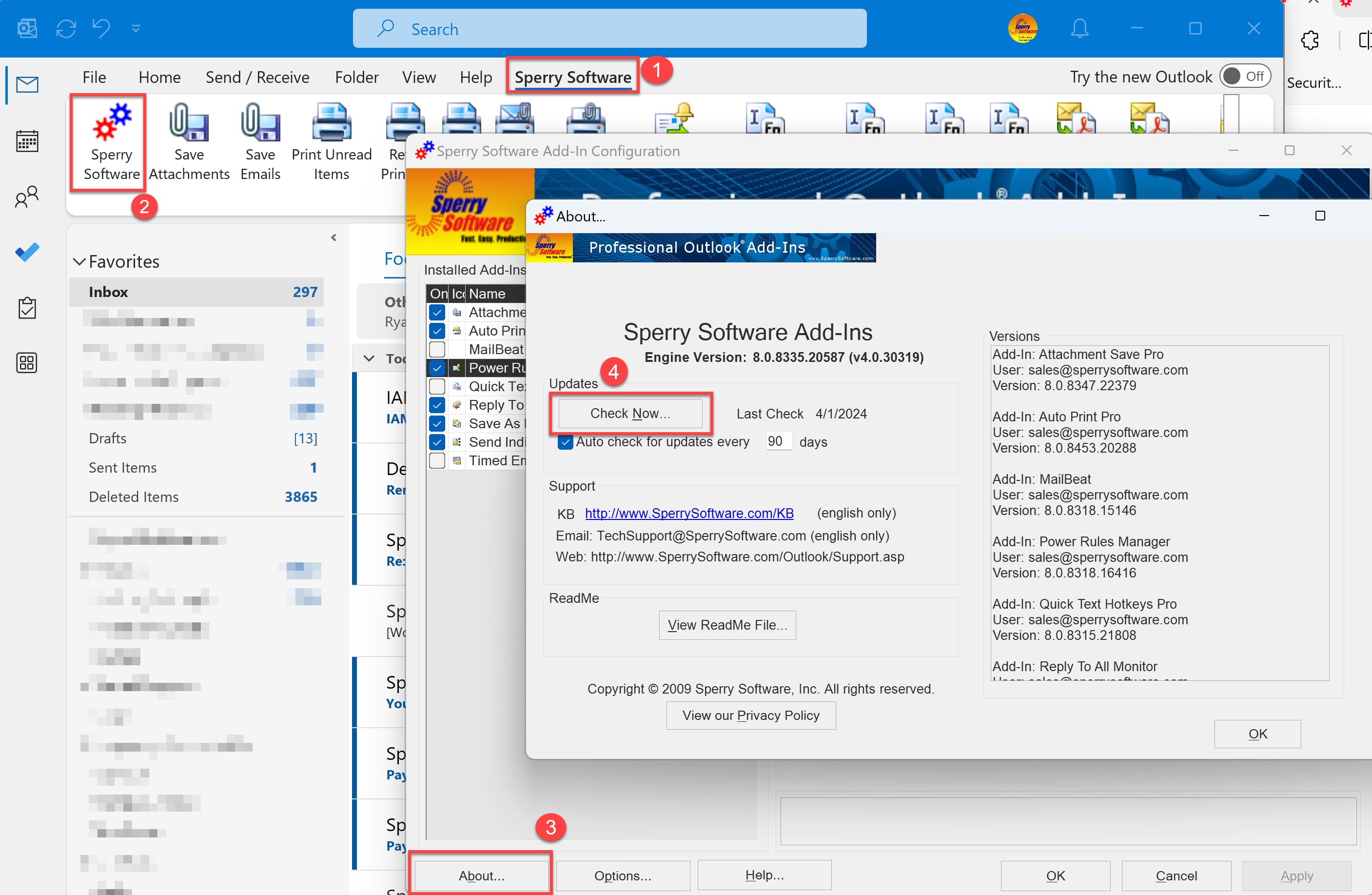
- In Outlook, open the Sperry Software tab.
- Click the red-and-blue gear icon to open the Configuration window.
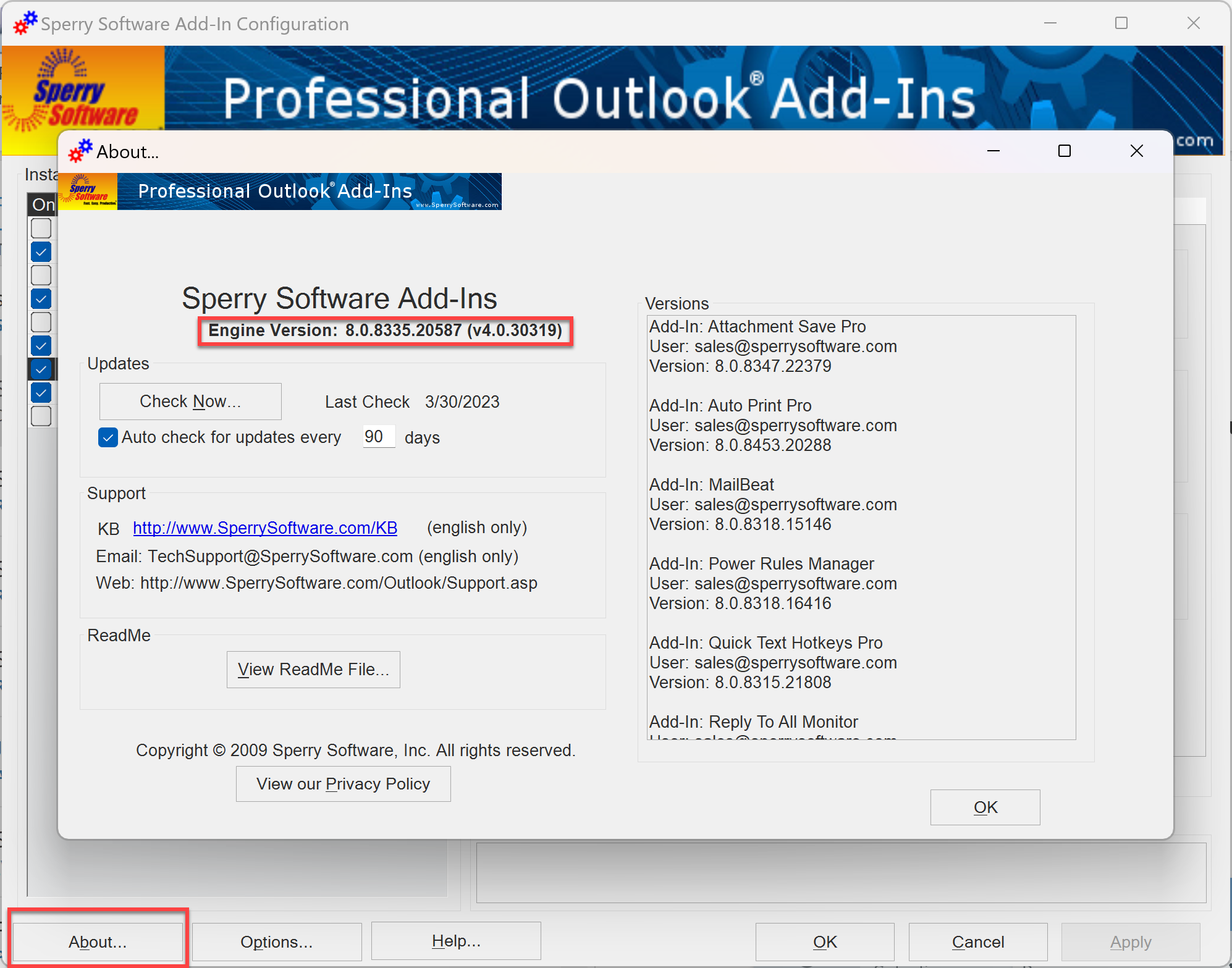
- In the lower left, click About.
- Click Check for Now… and follow the prompts to install version 8.2.
If the in-app updater cannot reach our servers (some corporate networks block it), you can upgrade manually:
- Exit Outlook.
- Open Control Panel, then Programs and Features, then Uninstall a Program.
- Find the add-in in the list (all our products are listed as “Sperry Software – name of add-in”), highlight it, and click Remove.
- Download the current v8.2 trial installer for that add-in from our website and run it.
Your license is not erased by this process. Installing the trial version on a machine that already has a paid license simply converts it back to the licensed version, so you can upgrade without re-entering license information.
Looking ahead
The .NET Framework 4.6.2 retirement in January 2027 is the kind of quiet infrastructure deadline that is easy to miss until an auditor asks about it. Version 8.2 removes that question from your list. It also lays a stable foundation for the feature work we have planned for the classic add-in line over the next twelve months.
Read the full v8.2 change notes and download links on our What’s New page.

Related Posts

Comments (2)
Comments are closed.

[…] a later desktop release, read the version 8.2 release overview. Confirm the requirements and upgrade eligibility for your add-in before choosing an […]
[…] information about a later desktop release, see the version 8.2 platform and feature overview. That release concerns classic desktop Outlook COM add-ins, not the separately updated Microsoft […]